
0. Introduction
Thanks to the development of web technology, mobile devices can now be mentioned in the same breath as productivity. This article will show you how to build a Hexo blog from scratch on codespaces using only an iPad
0.1 Gathering the ingredients
- An iPad with a good network connection
- A GitHub account
0.2 What is a codespace
GitHub Codespaces is a cloud-based development environment provided by GitHub that lets you use a full VS Code experience directly in the browser, without installing any development tools locally. This means we can do development work in any environment that has internet access and a browser, without depending on local physical devices — very well suited to mobile devices like the iPad
1. Basic setup
1.1 Log in to GitHub and create a repo
Open GitHub, log in to your account, click the + in the top-right corner, and select New repository. Fill in the repository name (e.g. hexo-blog); it’s recommended to choose private for the type, tick add a README file, and click Create repository to finish creating it.
1.2 Create a Codespace
On the page of the repo you just created, click the Code button, select the Codespaces tab, and click Create codespace on main; wait for the codespace to finish creating. VS Code will then open in the browser, and we can do the blog setup on this page.
1.3 Install Hexo
In the codespace terminal, enter the following command to install pnpm:
npm install -g pnpm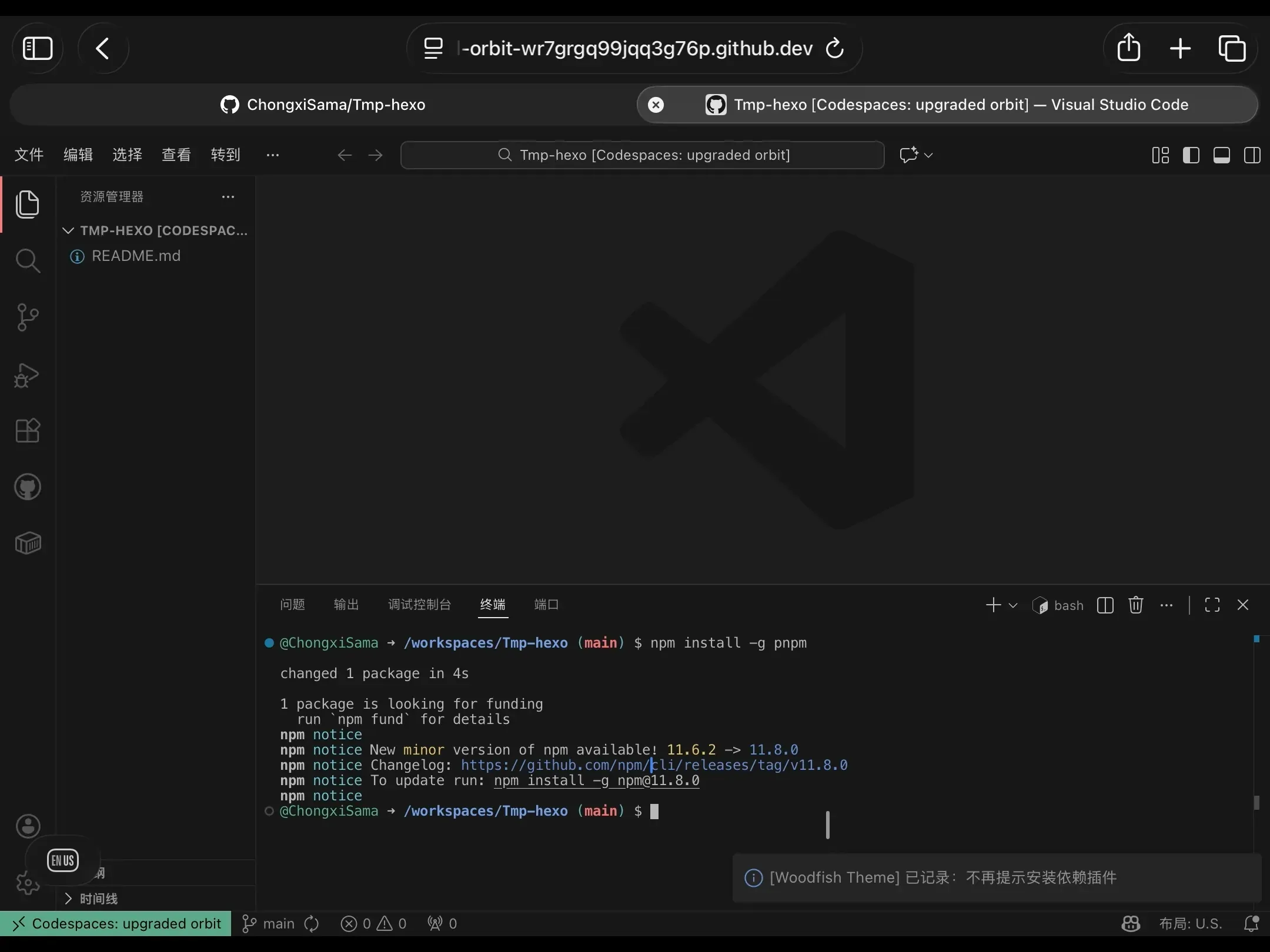
Then install Hexo:
pnpm install hexo-cli1.4 Initialise Hexo
In the terminal, enter the following command to initialise Hexo:
pnpm dlx hexo init tmpSince hexo is created in the subdirectory tmp, we need to enter that directory and move the initialisation output out
cd tmpmv * .[^.]* ..cd ..rm -rf tmpThat successfully moves the temporary tmp directory’s contents out
By default pnpm doesn’t allow scripts, so we need the following command to allow builds
pnpm approve-builds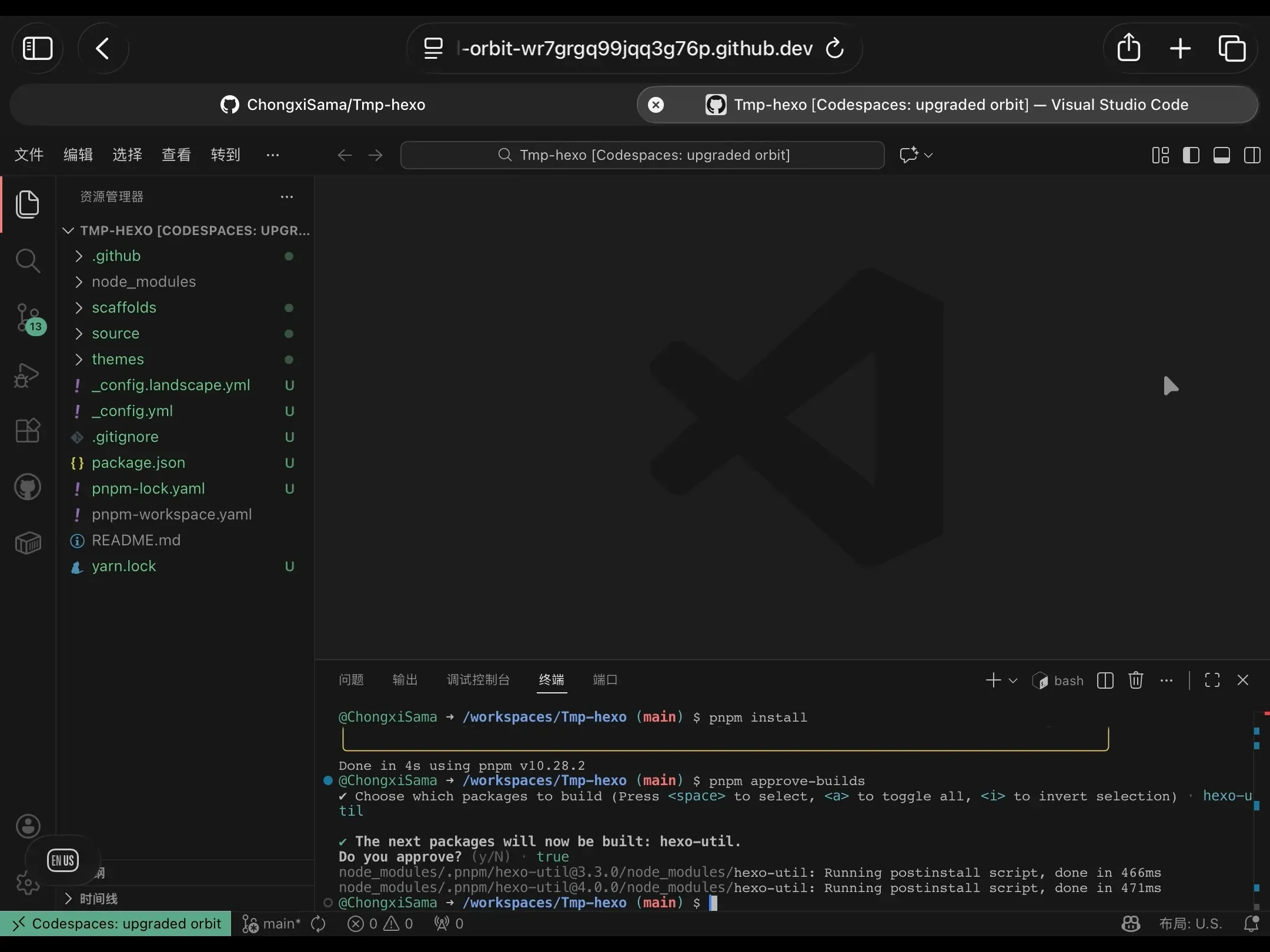
After entering it, command-line options appear; we input a, then input y and press Enter to allow all script builds, and the rest of the build completes automatically
1.5 Start hexo
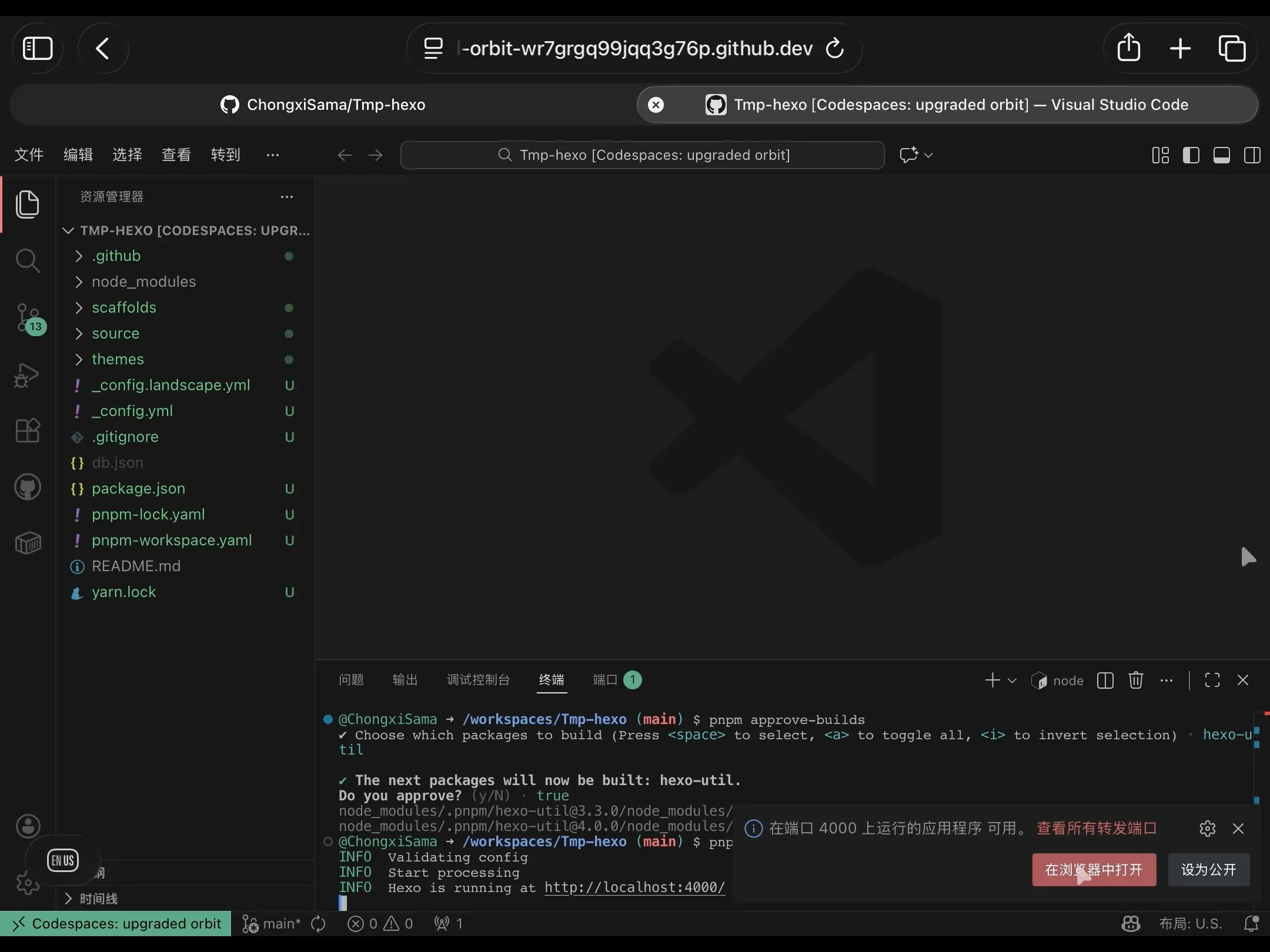
In the terminal, enter the following command to start hexo:
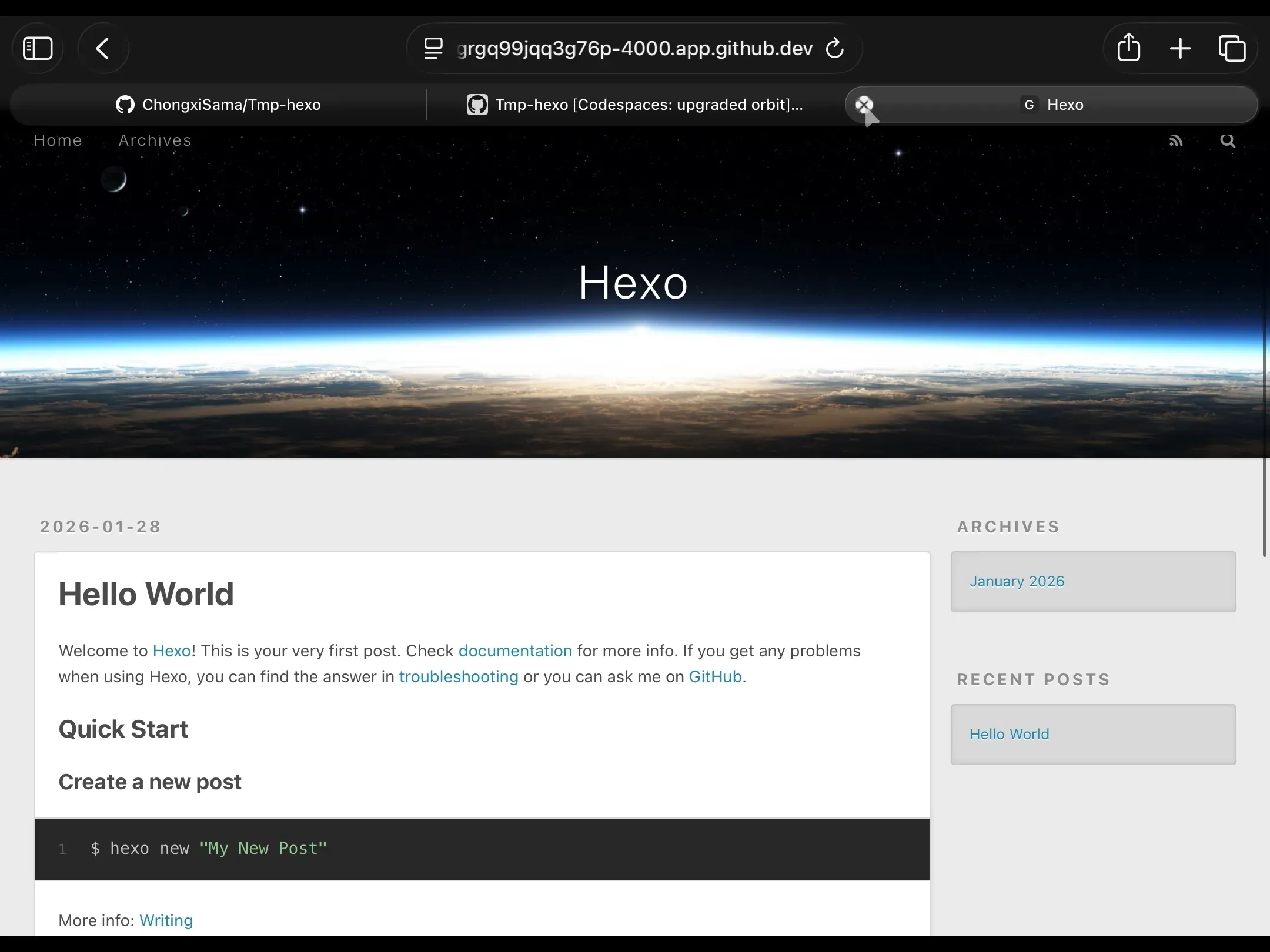
pnpm hexo sThe dev server then starts automatically. Click 在浏览器中打开 and you can preview the hexo blog in a new tab; press ctrl+c to stop the server
1.6 Make the initial commit
Open the terminal and enter the following commands to make the initial commit:
git add .git commit -m "Initial commit"git push -u origin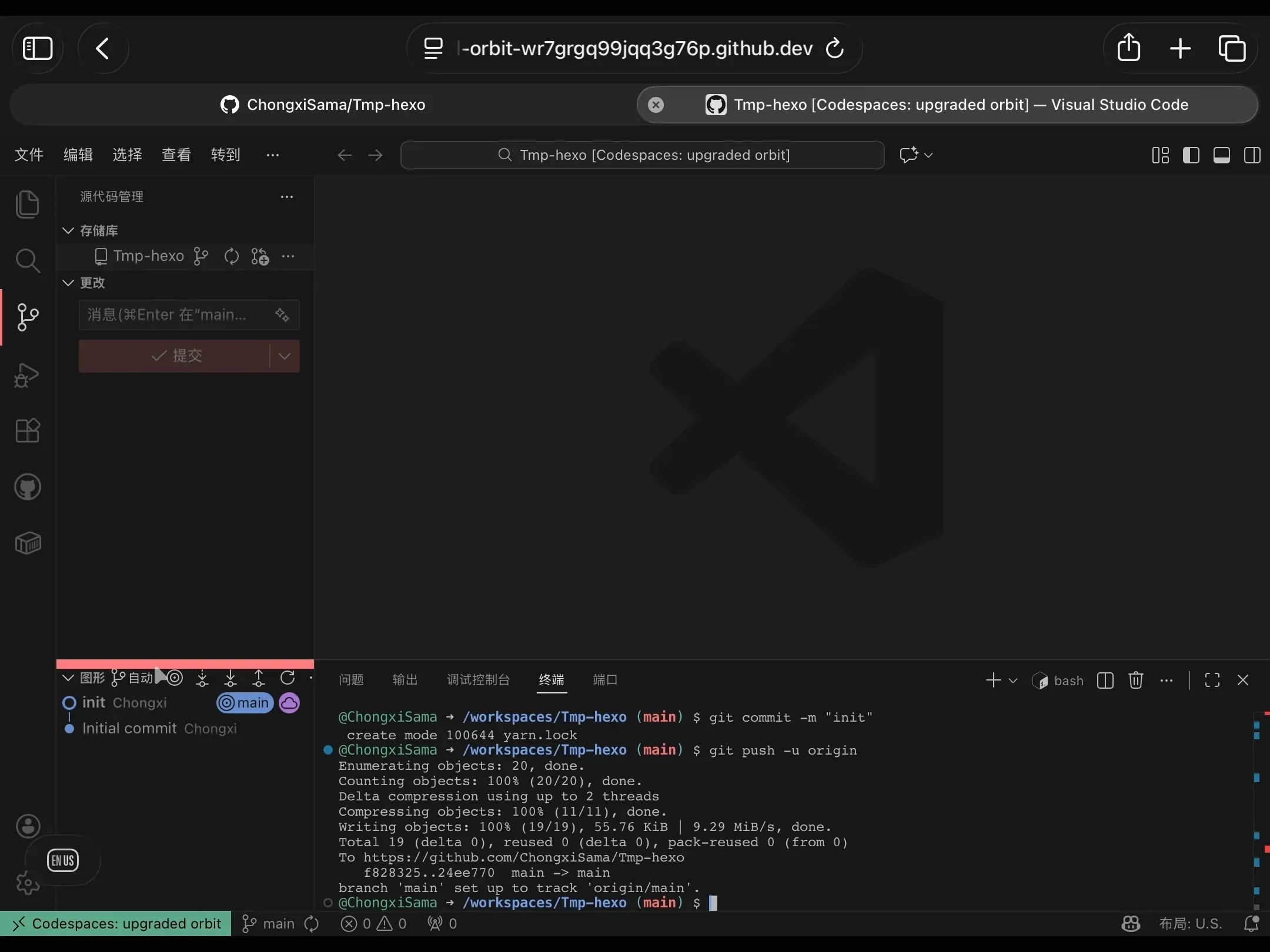
Later commits can also be pushed via the Source Control icon on the left
TIPWhy commit?
In codespaces, it’s roughly equivalent to a temporary environment; committing is like hitting save once, and that save is recorded in git history, so you can view/roll back at any time
2. Using hexo
2.1 Creating a new blog post
In the terminal, enter the following command to create a new blog post:
pnpm hexo new "文章标题"A new markdown file is then generated under the source/_posts directory; open this file and edit it
2.2 Changing the theme
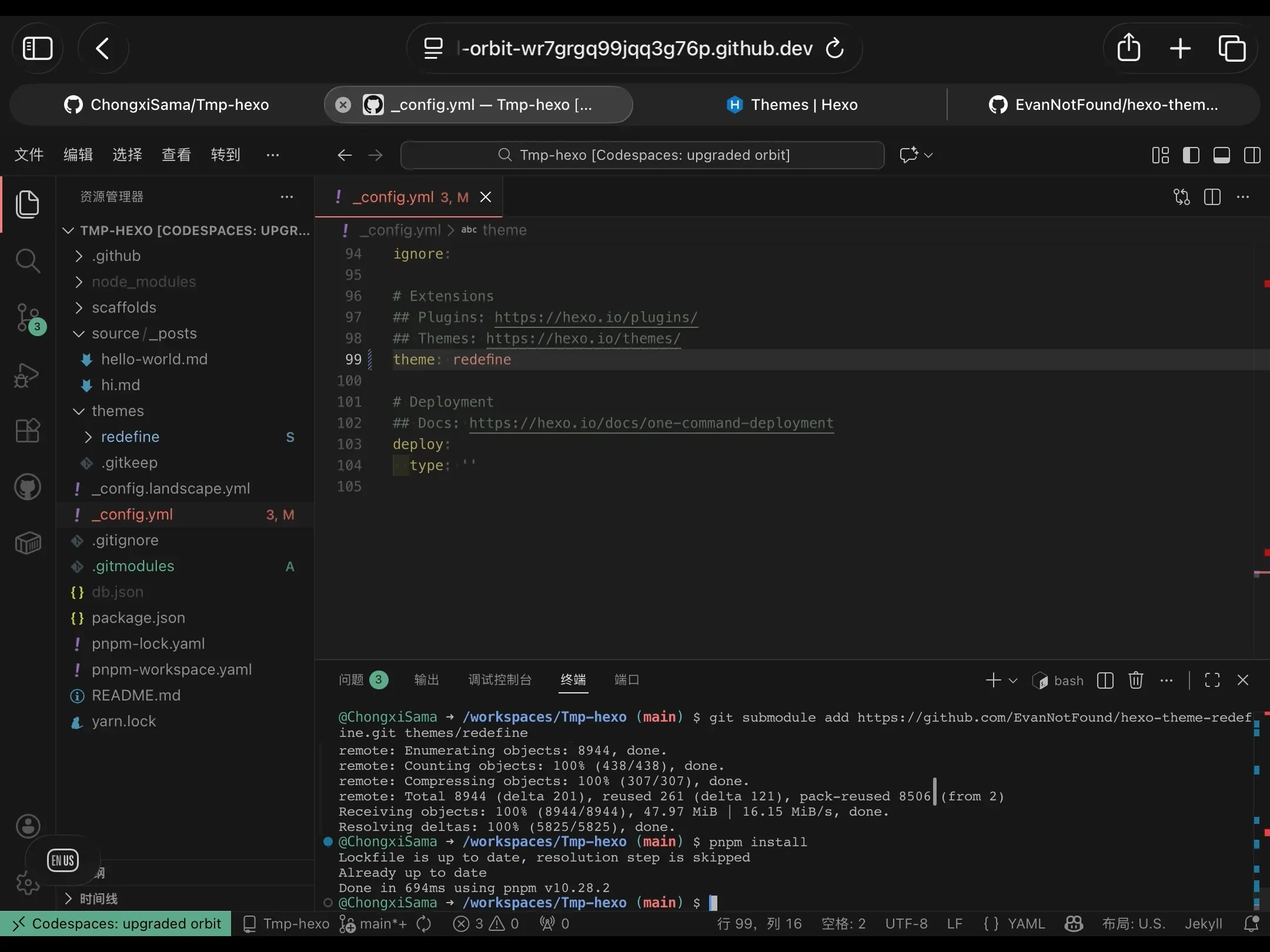
You can choose a theme you like from hexo’s theme gallery and install and configure it following the theme’s installation instructions. Here’s the hexo redefine theme as an example:
git submodule add https://github.com/EvanNotFound/hexo-theme-redefine themes/redefineThen open _config.yml, find the theme field, change it to redefine, and save
2.3 Configuration
Open _config.yml; the most basic information can be defined here, such as the site title, description and author info — modify it as you need. Theme configuration generally needs to be configured separately; please refer to the README of the theme you’re using
3. Deploying to cloudflare pages
Why choose cloudflare?
Cloudflare is a company that provides network security and content delivery network (CDN) services. Its main functions include protecting websites from DDoS attacks, speeding up website loading, providing SSL certificates and optimising website performance. Through its globally distributed server network, Cloudflare can efficiently cache and distribute content, thereby improving the speed and security with which users access the site.
And cloudflare pages is the static website hosting service Cloudflare provides, supporting deployment directly from a GitHub repository and publishing to the global CDN, at no cost — very well suited to a personal blog

3.1 Log in to the cloudflare dashboard
Open Cloudflare Dashboard, log in to your account, open the left panel, click 计算和 AI, click to create a new application, choose to deploy from a git repository, and select the hexo-blog repository you just created
3.2 Build configuration
- Framework preset: (leave blank)
- Build command:
pnpm hexo generate - Output directory:
public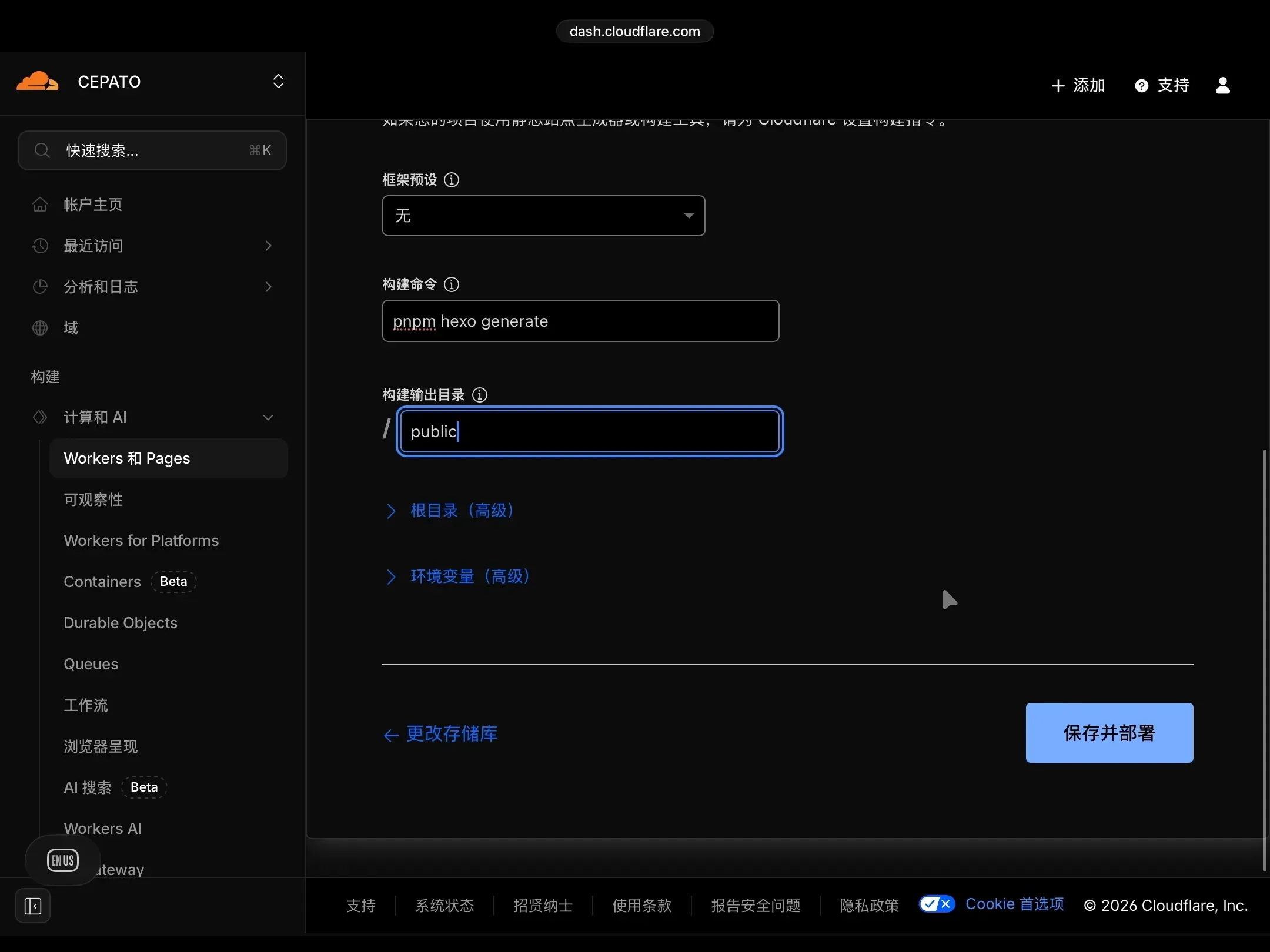
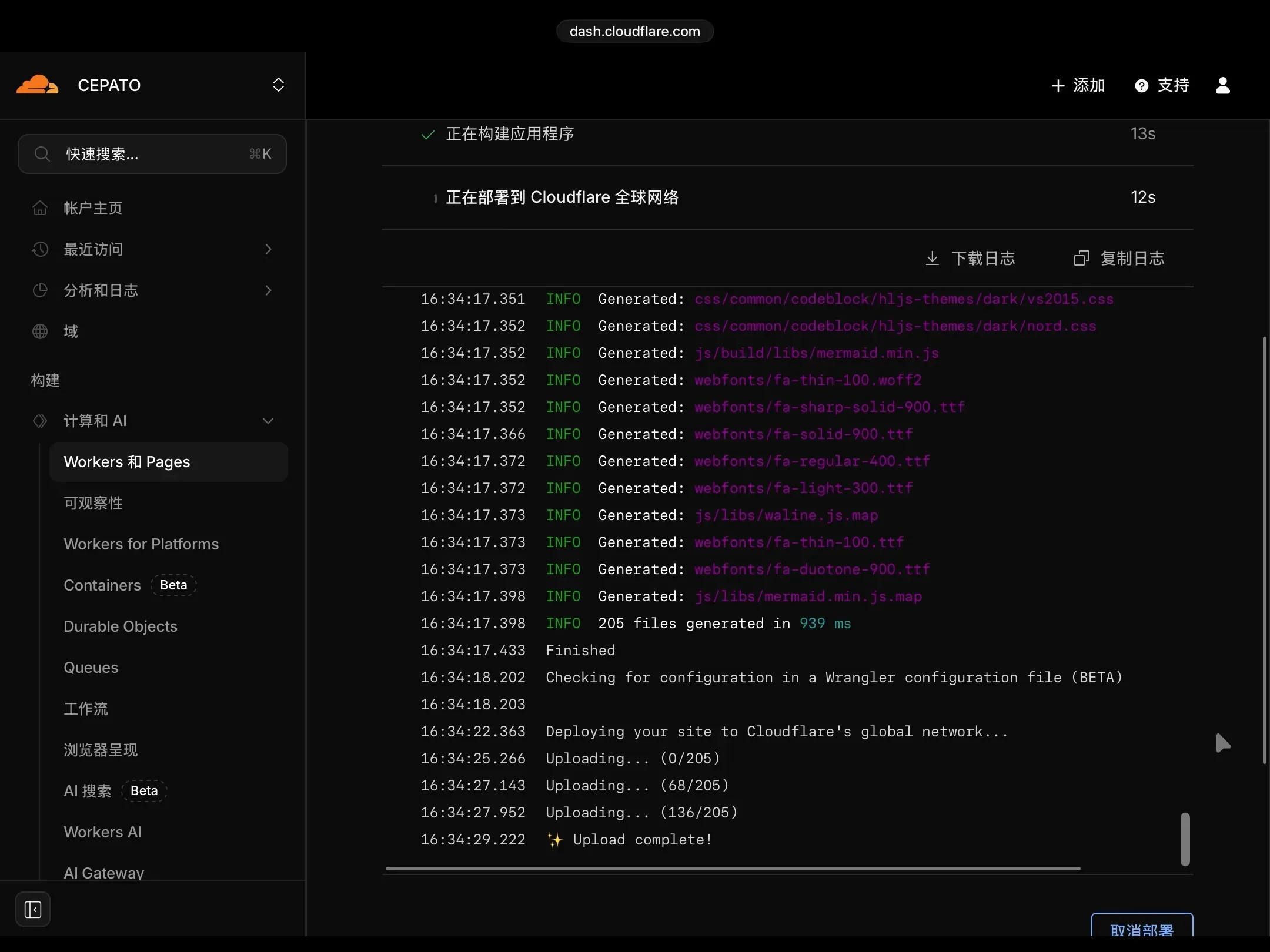
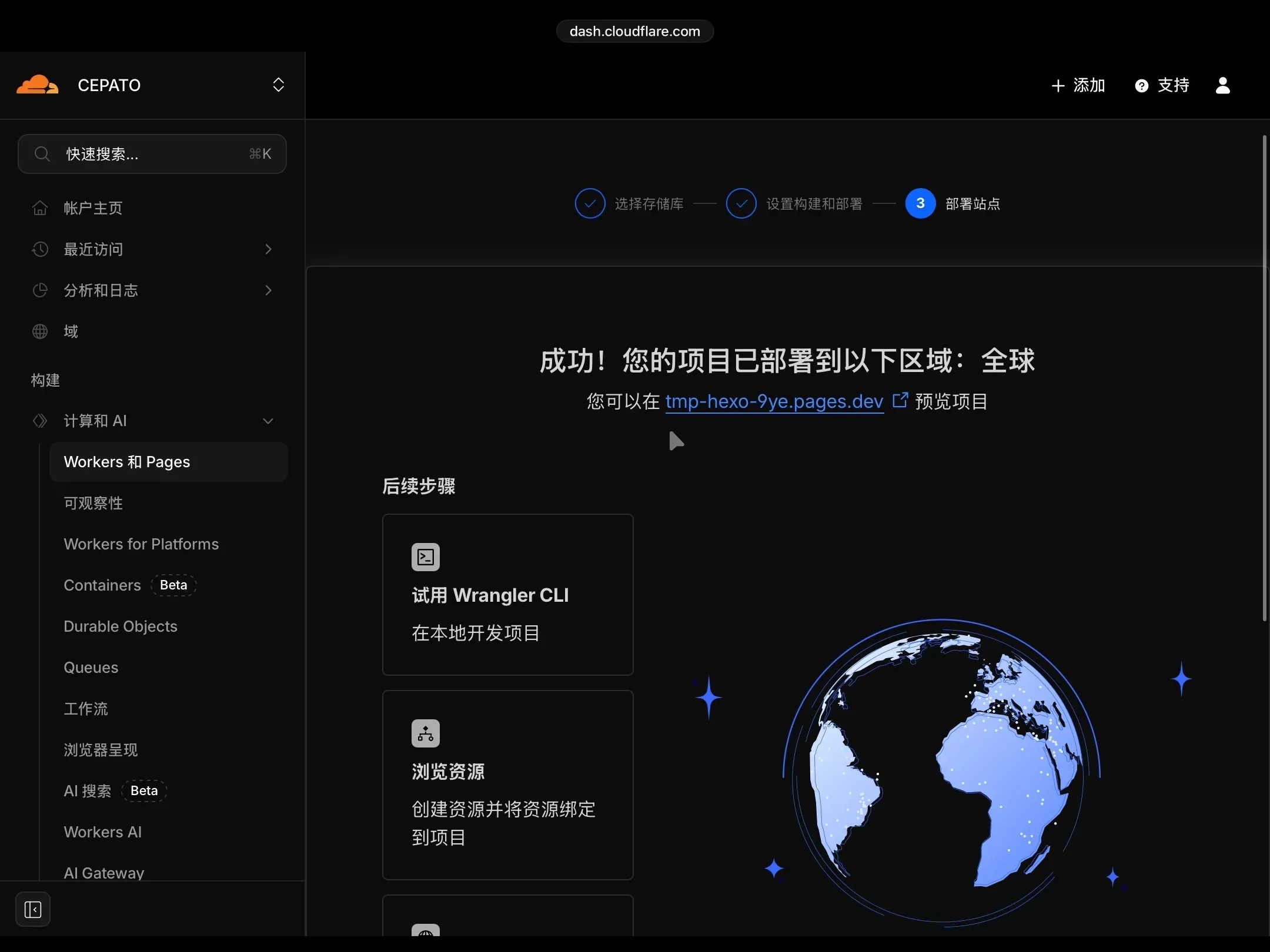
Click 保存并部署站点, wait a moment and the deployment is done
3.3 Accessing the site
cloudflare gives you a dev domain by default; you can also bind your own domain via CNAME
4. Conclusion
With that, we’ve built a hexo blog using only an iPad. I have to say, codespace really does offer a way out for mobile productivity. I hope this article helps you, and let me also leave a pit for future articles while I’m at it — if you’d like to see it, I could later do a dedicated vertical comparison of various blog frameworks