0.1 Introduction
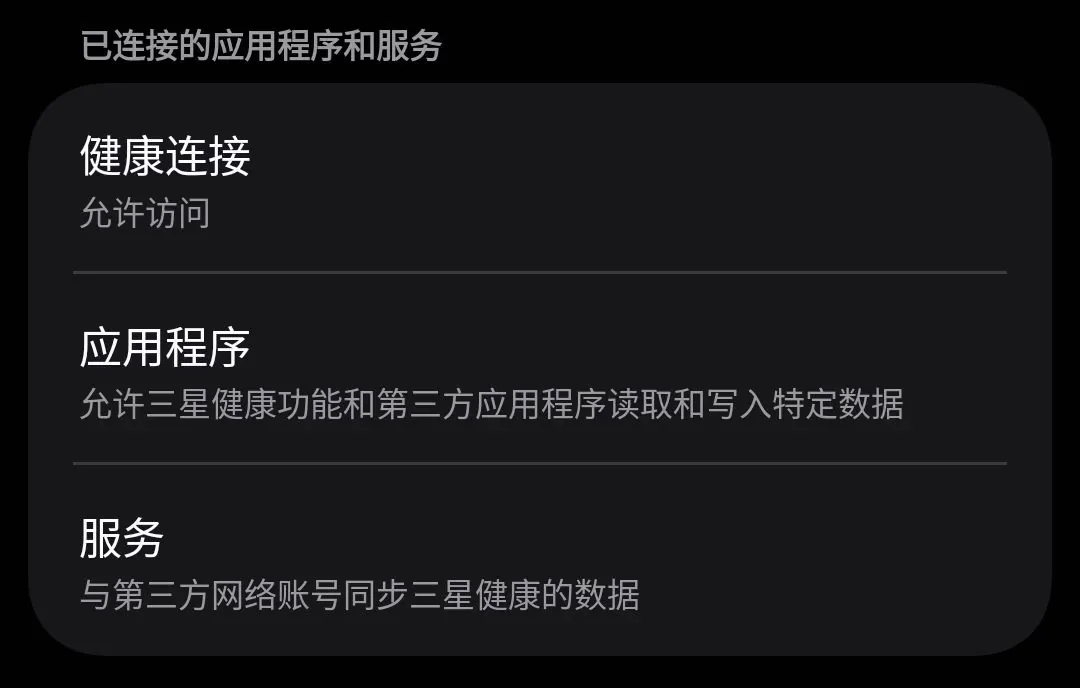
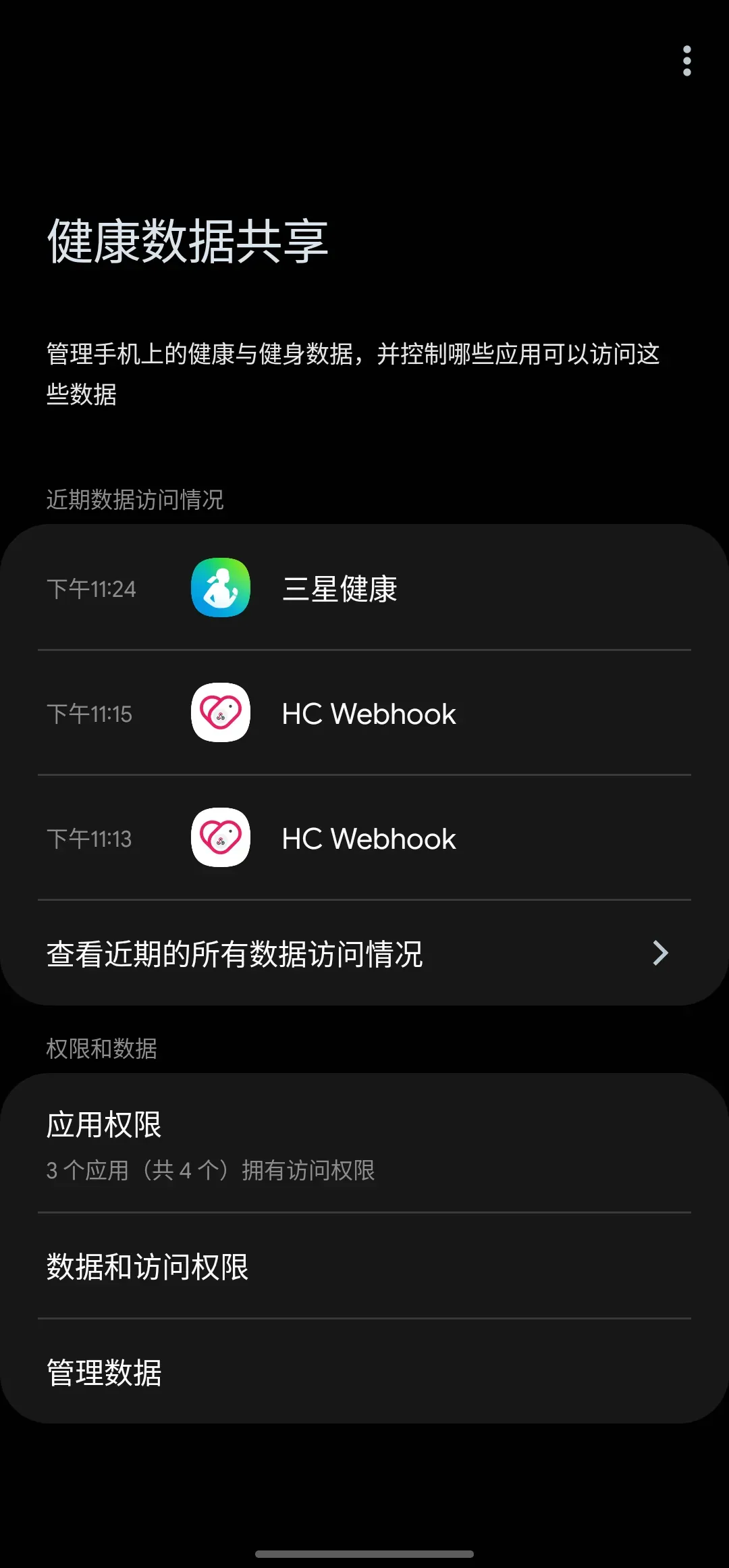
Samsung is arguably one of the phone makers with the strictest region locking; China-region Samsung devices have many features restricted, such as Samsung Health’s Health Connect. Even if you grant Samsung Health read/write permission for Health Connect, China-region Samsung Health won’t actively write to it. This article will walk you through, step by step, enabling developer mode in China-region Samsung Health and changing the region code to US to enable Health Connect
0.2 What is Health Connect
Health Connect is an Android health data sharing solution jointly launched by Google and Samsung, designed to let different fitness apps interconnect, delivering a seamless experience where you record in one place and it syncs across all platforms
0.3 Prerequisites
- Samsung Health app -
At the time of testing, the version number was
6.30.7.004 - Health Connect app If your Android version is 14 or above, it’s built into the system. Otherwise you need to download it from Google Play
1. Enabling developer mode
- Open the Samsung Health app, tap the home page menu, and enter settings
- Find 关于三星健康 at the very bottom and tap 版本号 repeatedly; the developer menu will then be activated
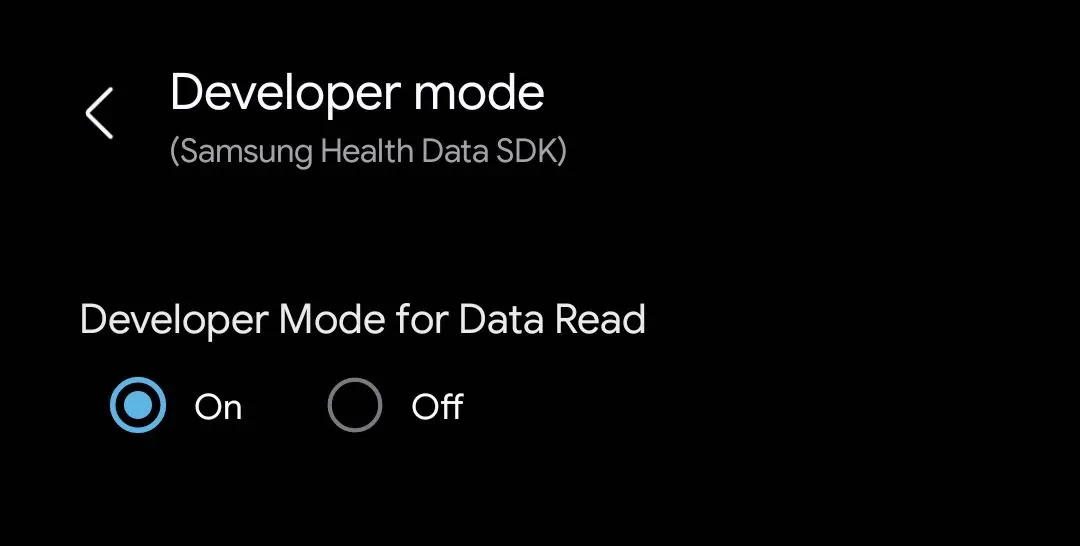
- Tap Developer Mode(Samsung Health Data SDK) and tick the Developer Mode for Data Read option to ON (you’re not done yet!!)
- Open any file manager and create a
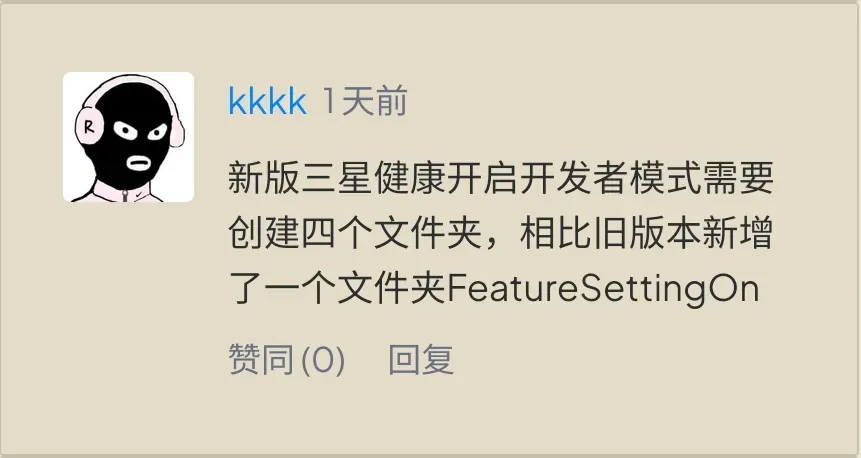
SamsungHealthfolder under the/storage/emulated/0/Download/directory, then create theFeatureManagerOn,FeatureListOn,CscManagerOnfolders inside it. Once created, the directory looks like this:
/storage/emulated/0/Download/└── SamsungHealth/ ├── FeatureListOn/ ├── FeatureManagerOn/ └── CscManagerOn/Pay attention to the case of the folder names
Thanks to netizen kkkk for the addition regarding the new version of Samsung Health
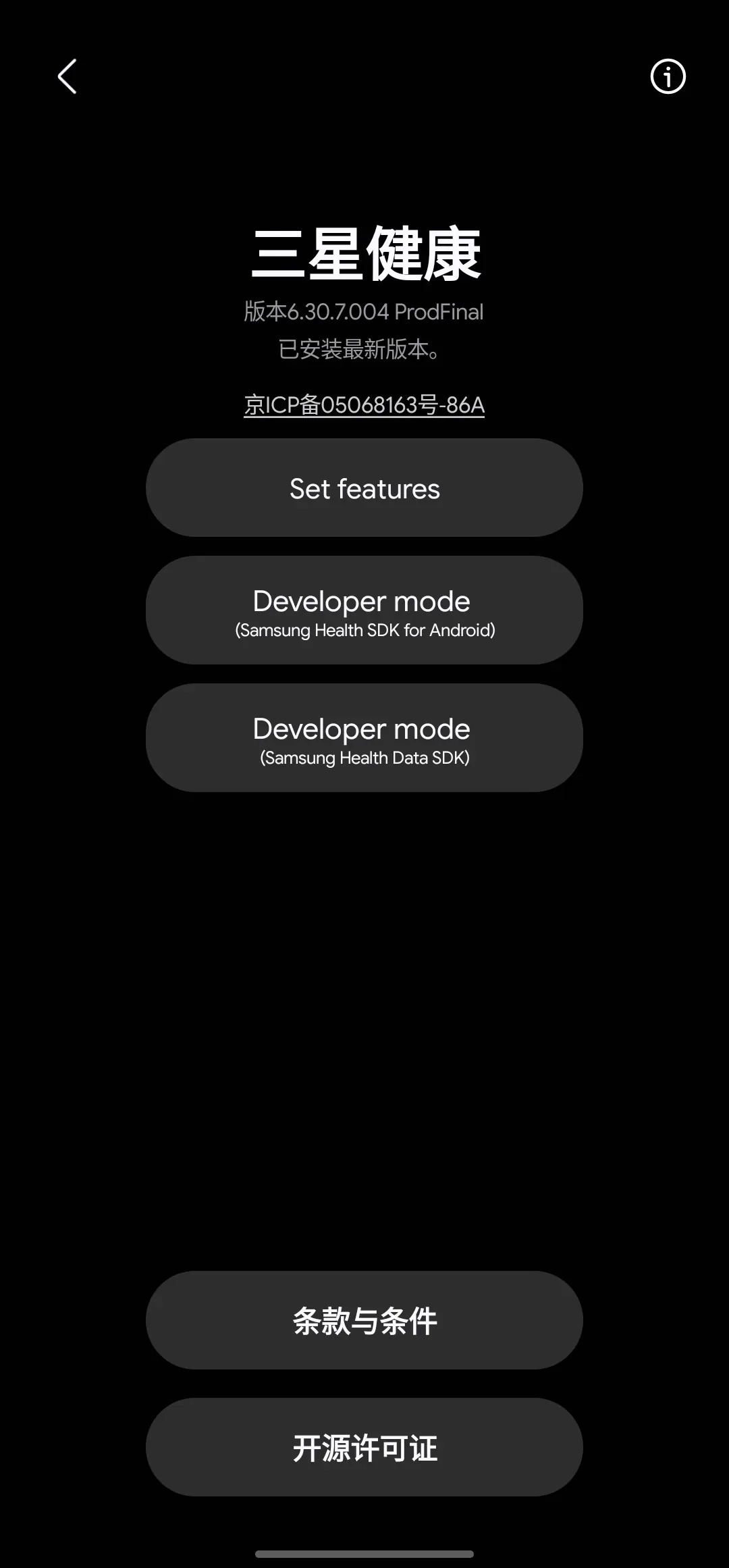
At this point developer mode and the related features are enabled. Go back to Samsung Health’s about page; if it looks like the image below, you’ve succeeded
2. Changing the Samsung Health region
Every following step must be carried out strictly according to the tutorial
Go back to the about page and tap Set Feature to enter the developer feature menu
2.1 Changing CSC & MCC
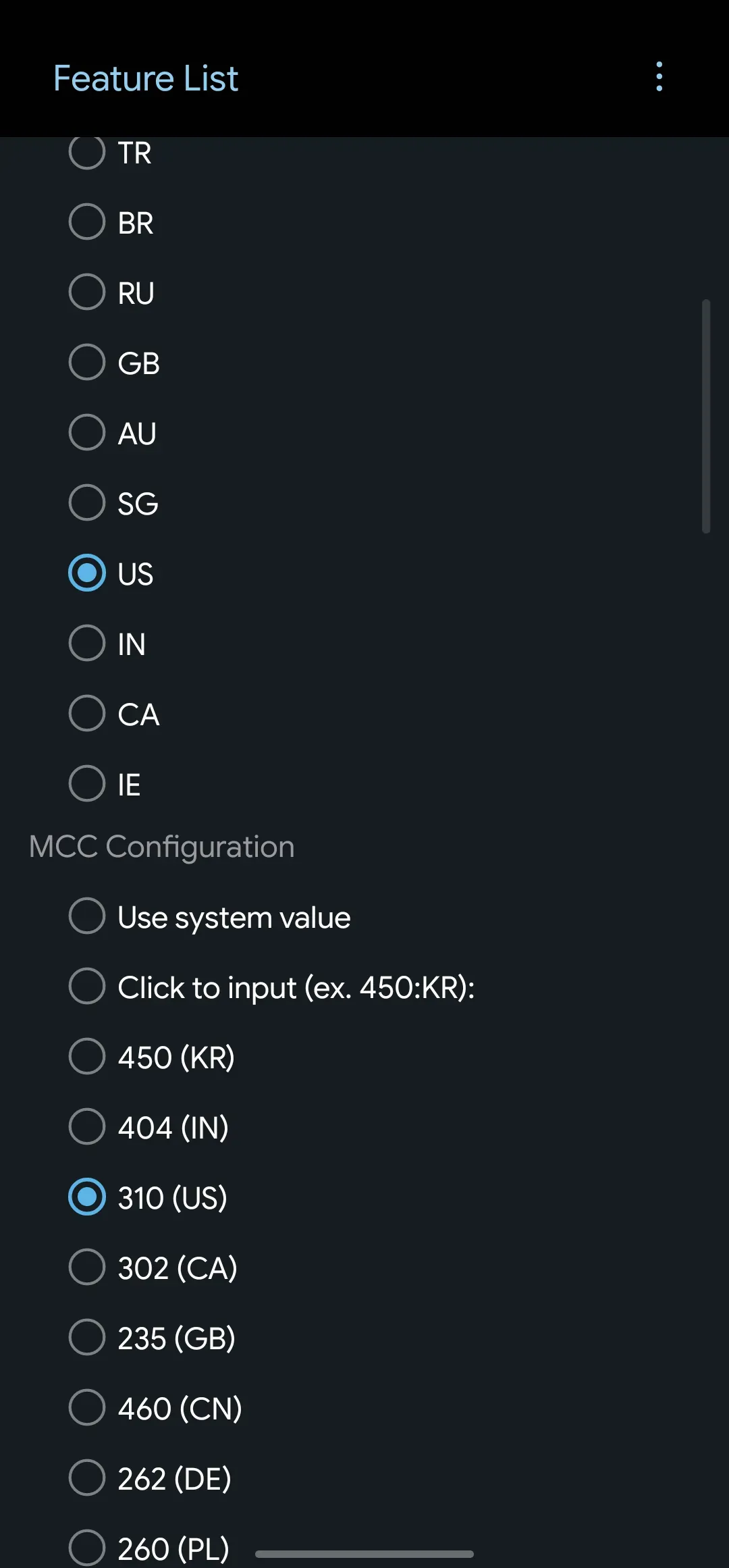
Open the Common option, change CSC Country Code to US, then find MCC Configuration below it and change it to 310(US)
2.2 Changing the HA server
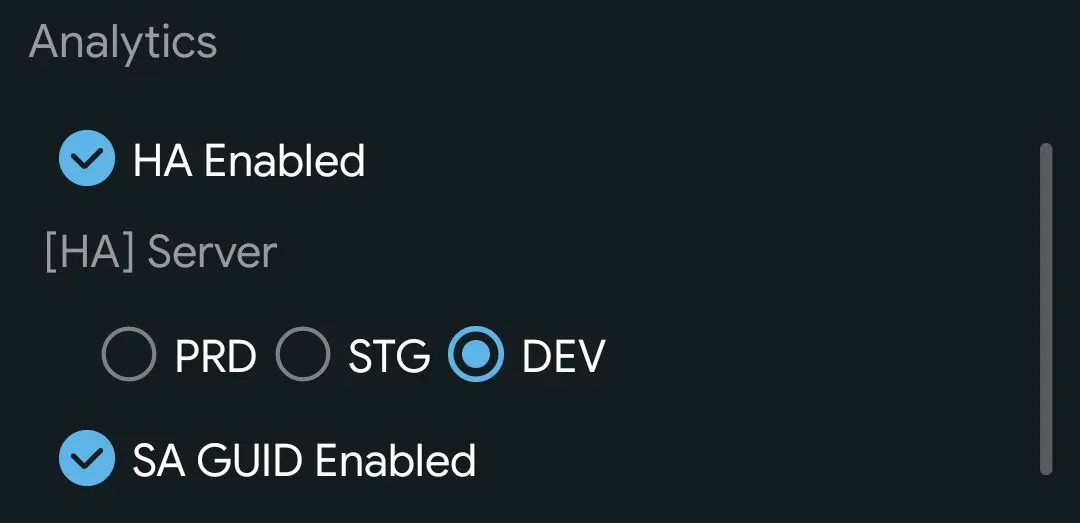
Tap the Analytics option and change [HA] Server to DEV
2.3 Enabling DataPlatform developer mode
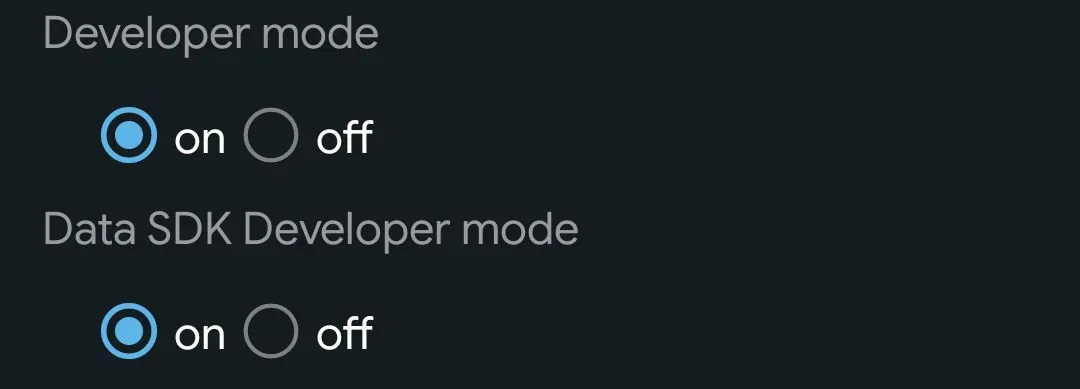
Tap Data Platform, find Developer Mode and Data SDK Developer mode, and tick them to on
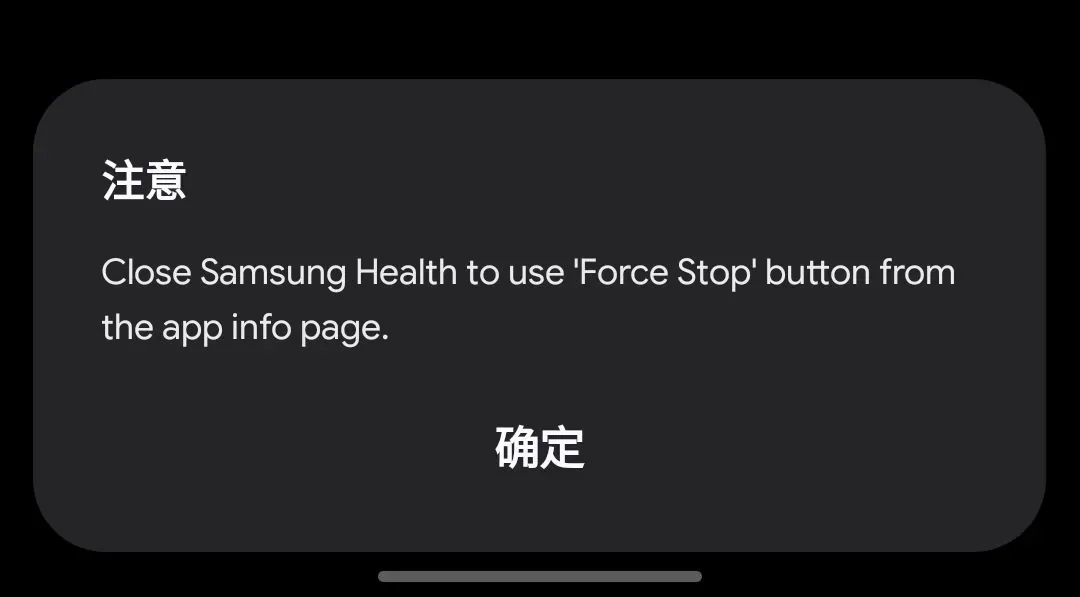
- Next you can exit that page; Samsung Health will ask you to force stop the app once — do as it asks
-
The next time you open Samsung Health, it will ask you to agree to the privacy policy etc. again; you must choose to agree
-
Then open settings and you’ll see the 健康连接 option; go in and grant permissions