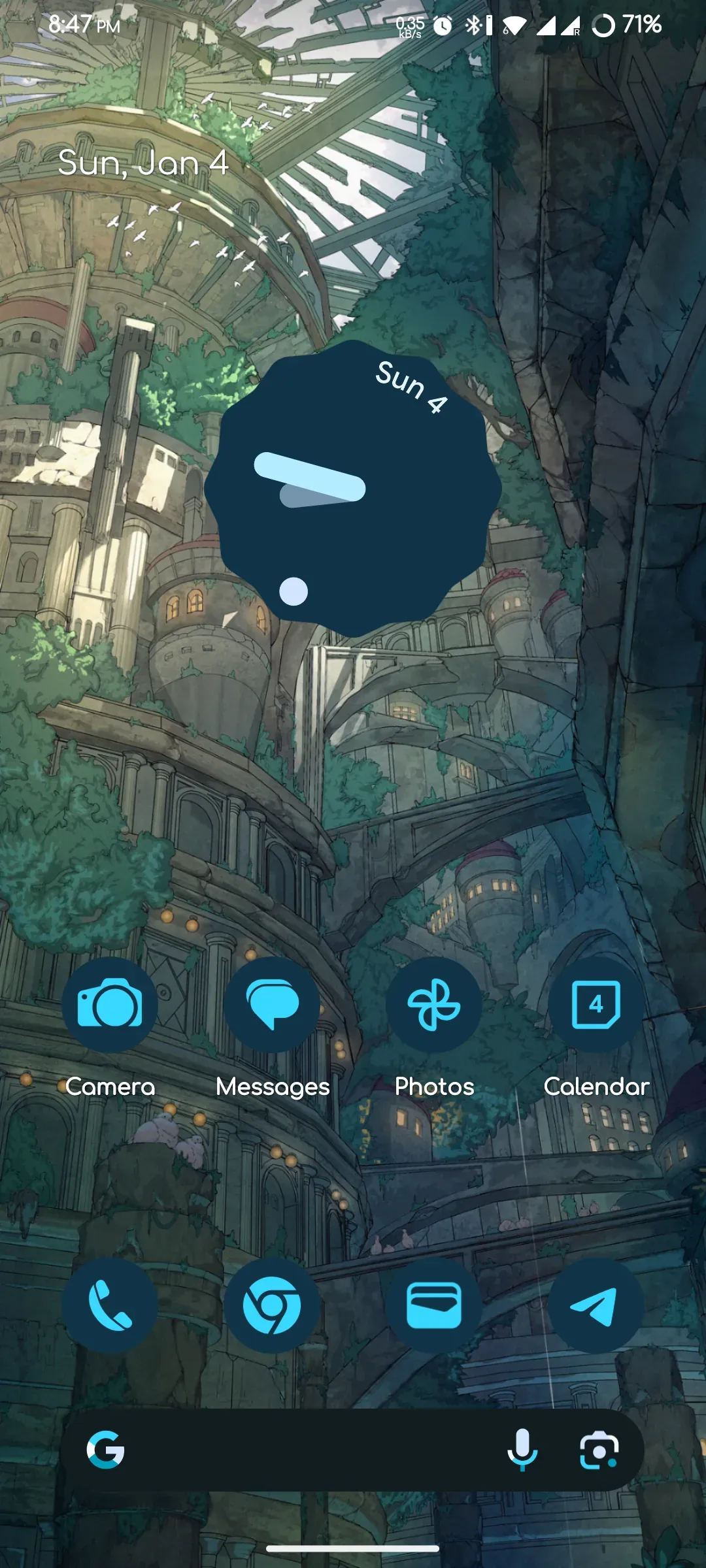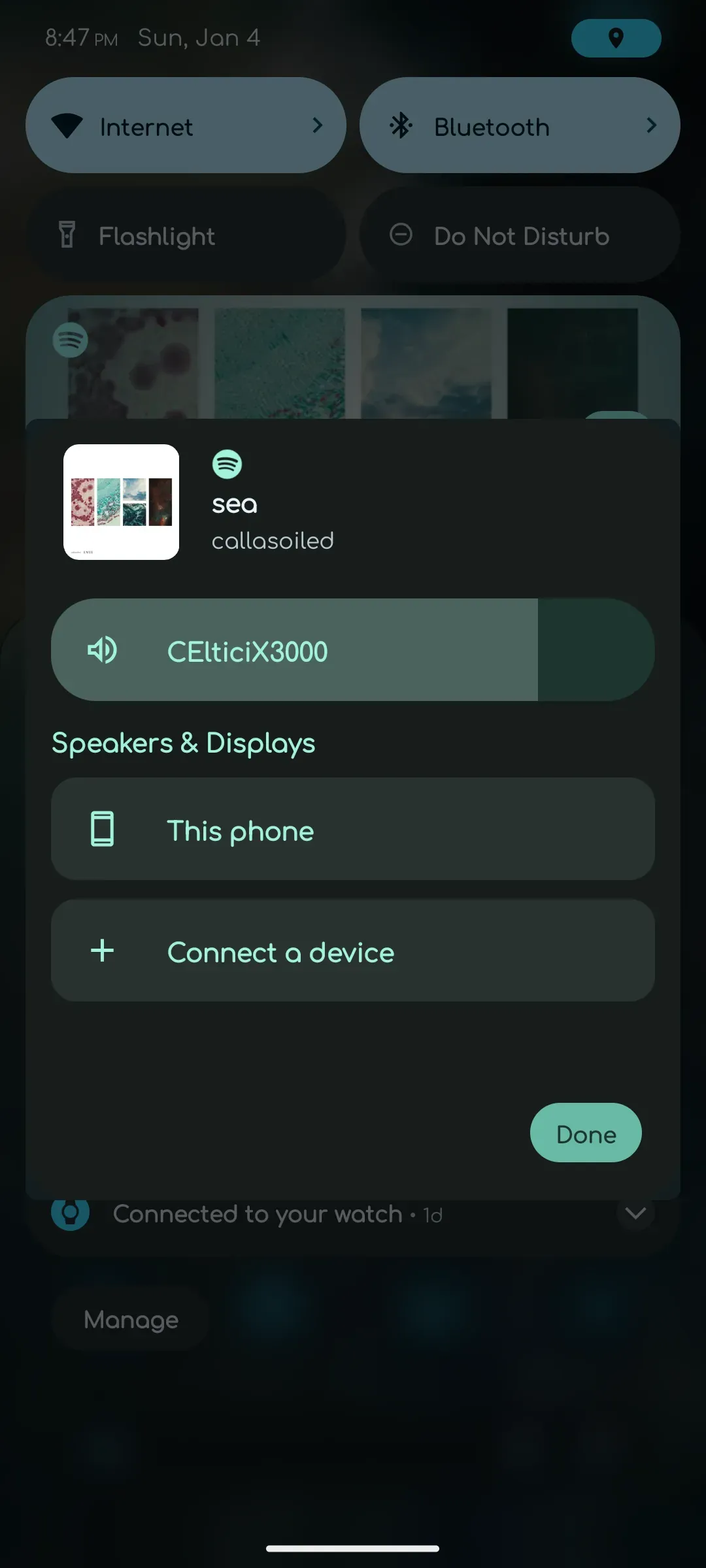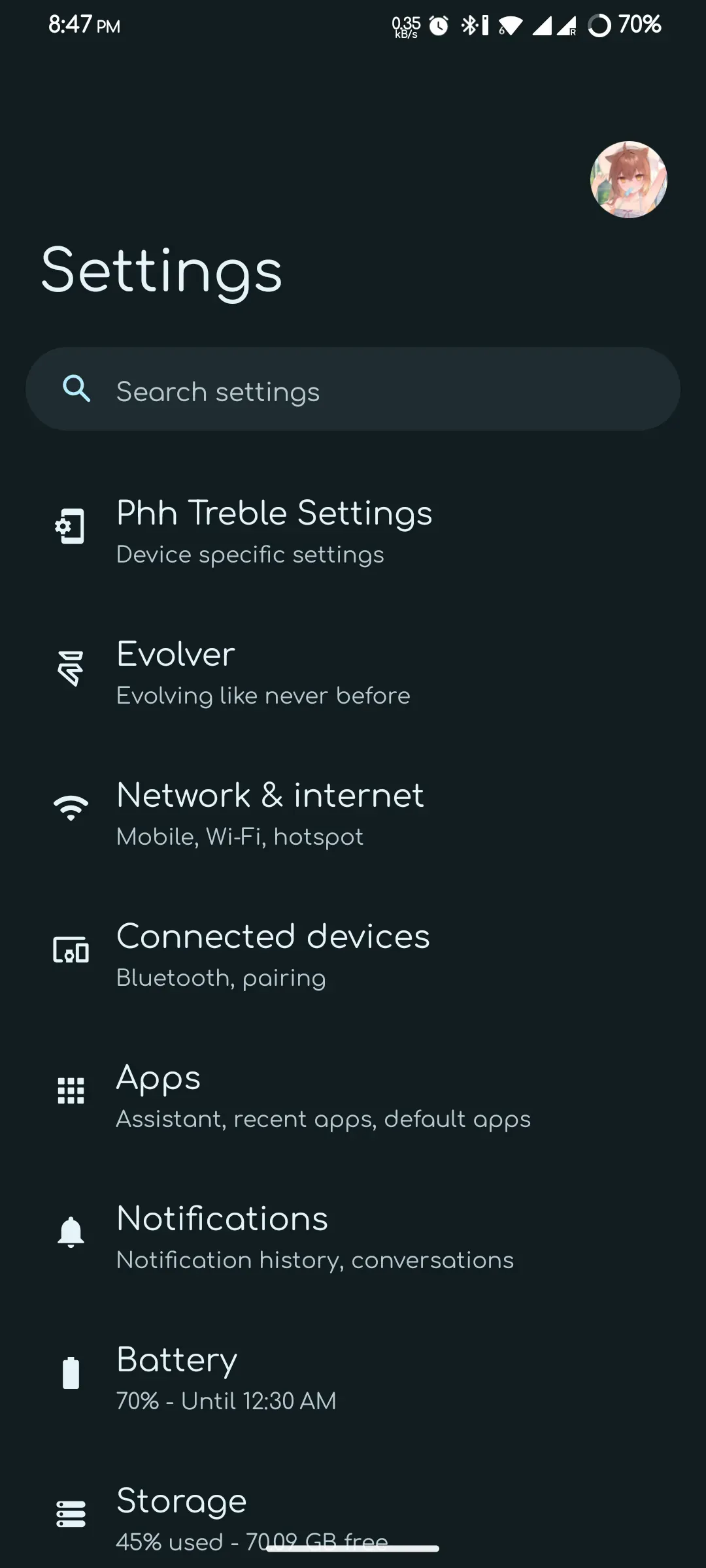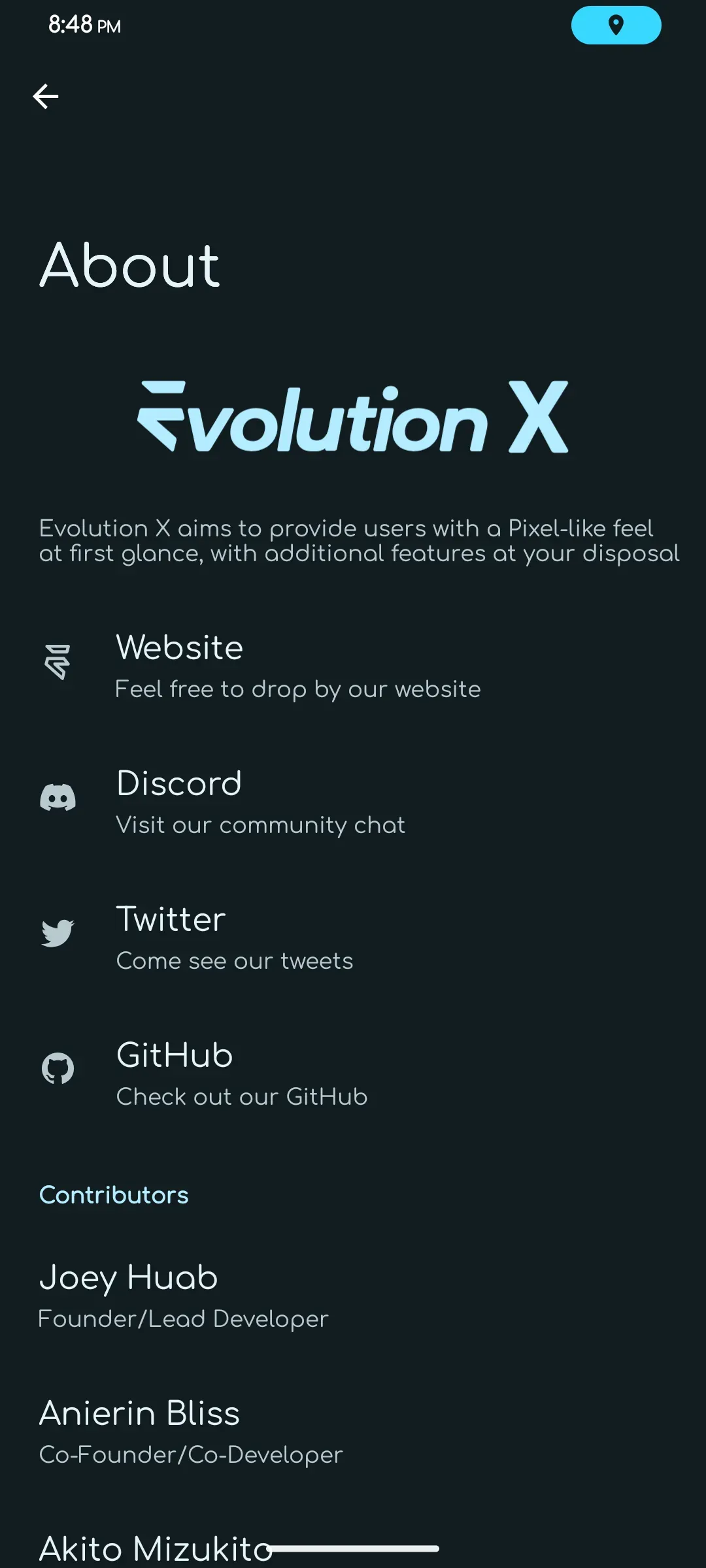
0. Introduction
What can I say about the Samsung S20? It’s one of those phones people hang onto forever. The main reason is that this phone is just too perfect (aside from the slow charging); I’ve never come across a phone with better in-hand feel than it. And for someone like me who doesn’t play mobile games, 12+256 is basically acceptable — photos and videos all live on the NAS anyway, and the apps themselves don’t take up much storage. The only downside is that the software can’t keep up: although OneUI 5.1 is good enough for retirement, the load is still a bit much for this five-year-old device (?), and so came this attempt at flashing near-stock Android
Chongxi used near-stock Android for about a year or two before, and quite likes the plain, bare-shell feel of near-stock. If you’re not comfortable with near-stock, flash at your own discretion. Also, because of the quirks of GSIs, you may run into some mysterious bugs; as far as Chongxi is concerned, the version used in this article currently has no problems, including fingerprint, IMEI, Bluetooth, NFC and so on — they all work normally
0.1 Ingredients
- A Samsung S20
- (Optional) Treble Info & DSU Sideloader
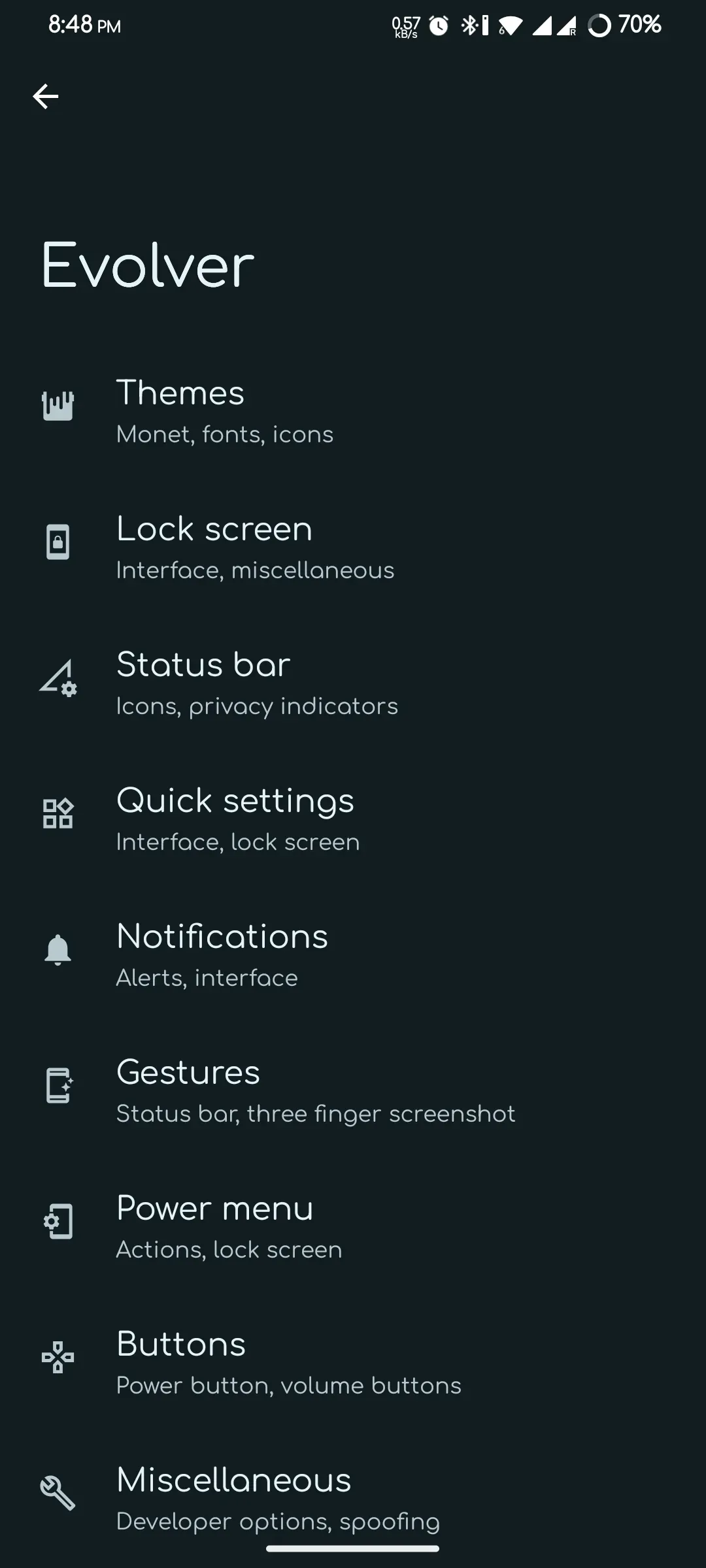
- Evolution X 9.7 - 2024-12-25 ROM
- S20 TWRP KiT (contains TWRP itself plus various verification bypass tools)
- (Optional) Kernel SU NEXT kernel x1q
- odin & Samsung USB drivers
You can get everything you need for this article in one click via Atlas 速递
CAUTIONBefore you start, make sure your phone’s bootloader is unlocked and you’ve downloaded all the software you need, that you have some basic flashing knowledge, and that you understand the risks flashing can bring. This article is only a sharing of experience and takes no responsibility for any consequences of your own actions. Please be aware of this
1. Flashing TWRP
- Make sure Odin and the Samsung USB driver are installed. Power off the phone, plug in the cable, and hold Volume + and Volume - at the same time to enter Download mode
- Open Odin and connect the phone to the computer in Download mode. Uncheck
Auto Rebooton the left, select TWRP in theAPslot, and select the vbmeta disabler inUSERDATAto skip vbm verification — otherwise you won’t be able to flash a third-party recovery
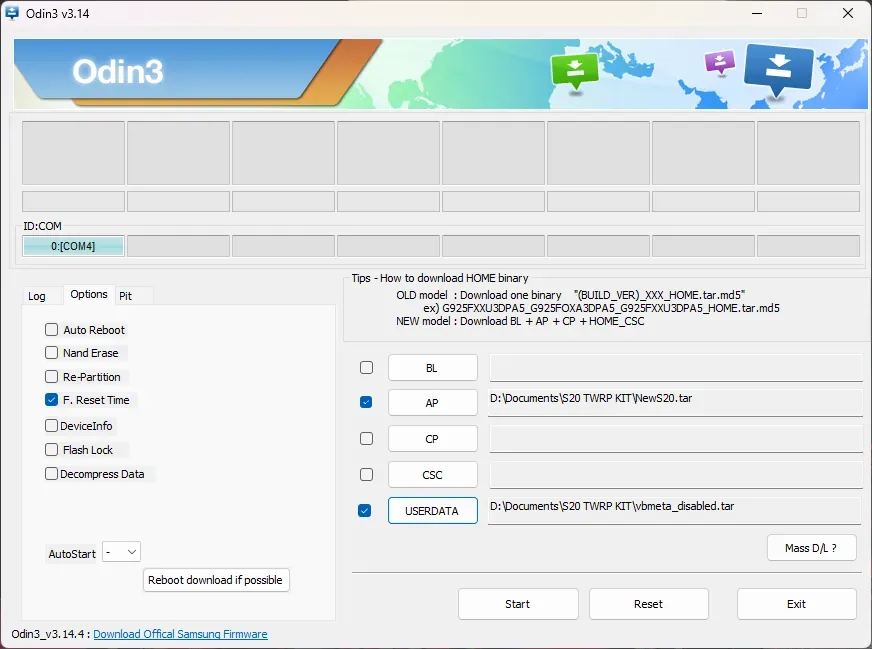
- After the flash succeeds, hold Volume - and the power button together for seven seconds to exit Download mode. Once the first boot screen appears, immediately hold Volume + and Power together, and release after you see the TWRP logo
2. Format data and reboot to Fastboot
- Enter TWRP, tap Wipe, select
data, type yes and format - Tap Reboot and choose Reboot to fastboot. Once it succeeds you’ll see the TWRP screen, but fastboot is actually running underneath — not the little Android robot or the fastboot logo we usually see
3. Flashing the GSI via fastboot
- Make sure you’ve installed the adb driver and added it to your global PATH. Open a terminal or PowerShell and enter
fastboot devicesIf your device is listed, you can proceed to the next flashing step. Otherwise you may need to troubleshoot the driver/cable/phone/port and so on
- Next, enter the following command and press Enter
fastboot flash system "D:/S20/evolution.img"// 请根据您的实际目录自行调整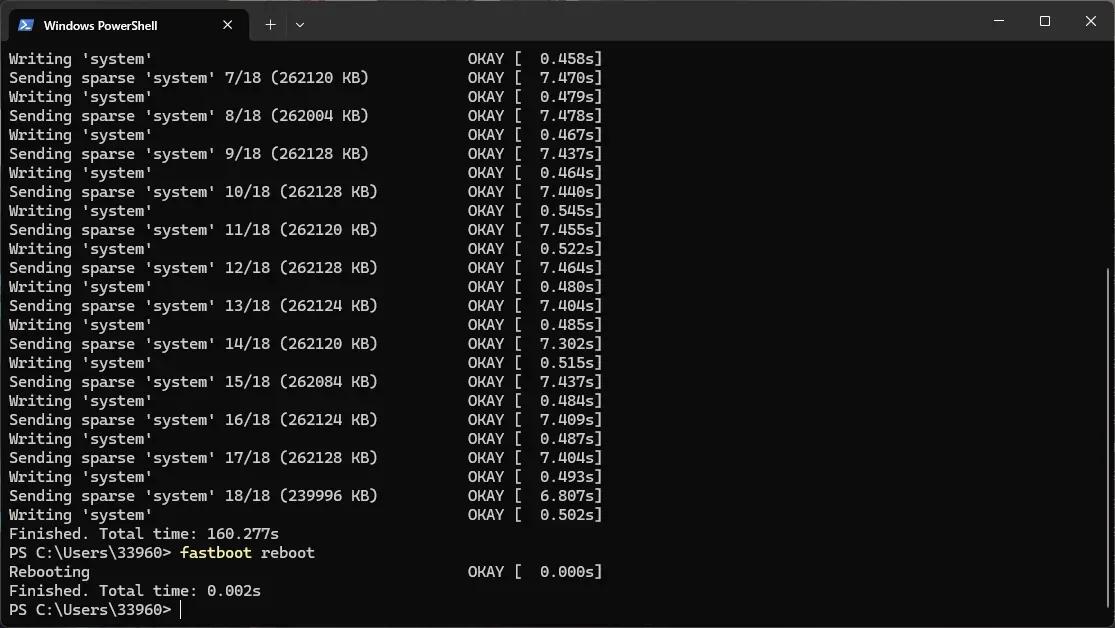
- Once it shows
[ok], it’s done. Now enterfastboot rebootto reboot the phone, then just wait patiently for it to boot into the system
4. Flashing Kernel SU NEXT
Chongxi only found a ksun kernel for sdm-x1q here, so that’s what this demonstration uses, because the G9810 has no GKI kernel and Chongxi has no experience compiling kernels. If you’re an expert in this field, feel free to attach a link to your ksu kernel in the discussion
-
Follow the same steps to reboot into Download mode
-
Select the kSUN kernel in the
APslot, still select the vbmeta disabler inUSERDATA, and hit flash -
Reboot, install the ksun manager, then enjoy~
5. Conclusion
In theory, flashing a GSI works on every Android device, but also it doesn’t; it’s very much a matter of luck
The GSI flashed this time happens to have no serious bugs; some issues such as auto-brightness can be patched through the built-in Phh Settings, making it very close to a custom ROM experience
6. Buyer’s Showcase