Intro
Anyone who read my previous post about flashing an AOSP-like ROM on the Samsung S20 probably knows that I’m rather fond of the S20; if you haven’t read it, that’s fine too. This article focuses on how to flash a ported OneUI 8 ROM onto the S20 series
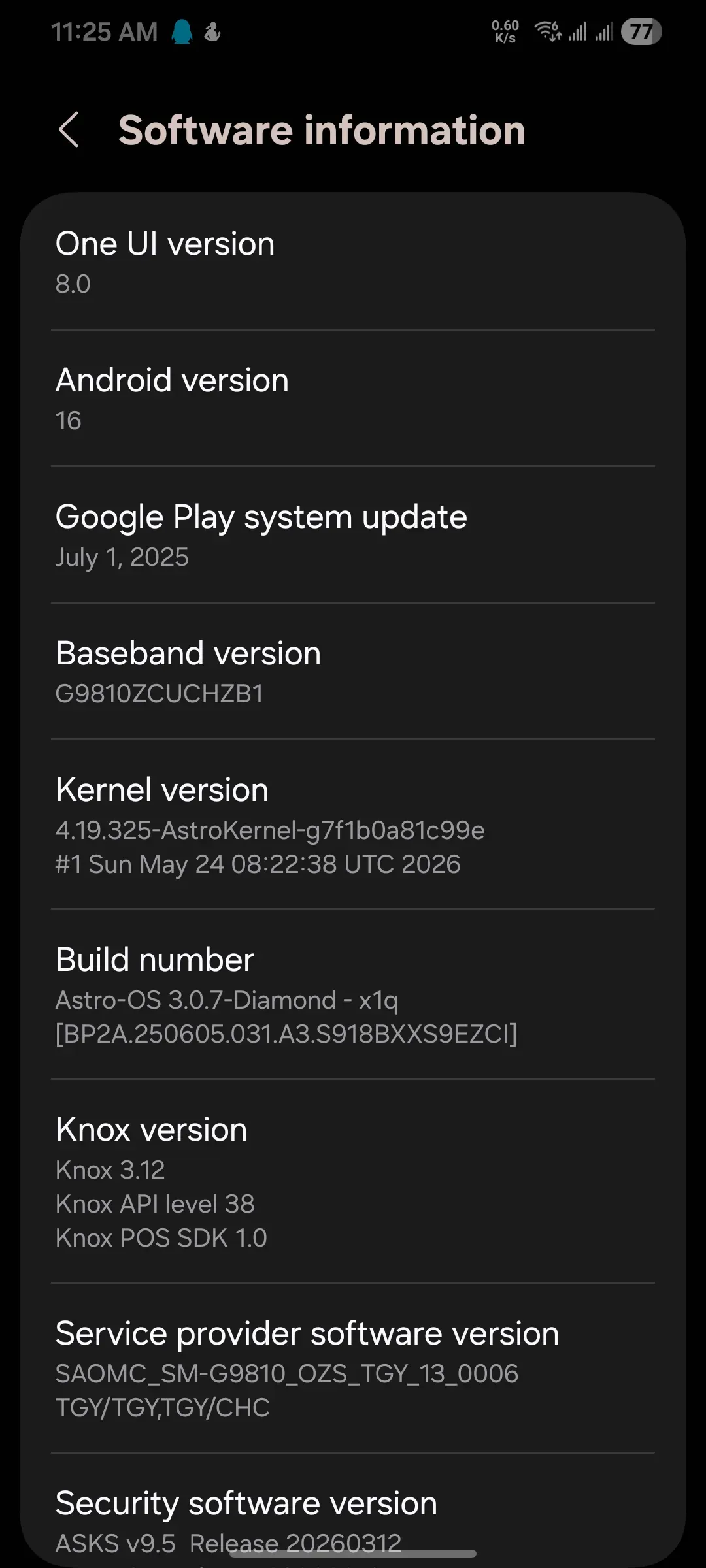
What we’re flashing this time is Astro ROM, ported from the S23 Ultra. Everything works fine; drivers like the camera and fingerprint all behave normally
Supported models
Snapdragon models only!!!
Samsung Galaxy S20 (x1q) Samsung Galaxy S20+ (y2q) Samsung Galaxy S20 Ultra (z3q)
• SM‑G981N, SM‑G9810, SCG01 ,SC-51a • SM‑G986N ,SM-G9860 ,SCG02 ,SC-52a • SM-G988N ,SM-G9880 ,SCG03
Preparation
- An S20
- Good eyesight, functional hands and basic reading comprehension
- The Samsung flashing tool Odin
- A base system firmware (if yours is a China model, you need to flash the Hong Kong firmware as the base first)
- The ported ROM package
- vbmeta_disabled.tar
- multidisabler-samsung-3.1-keep_encrypt.zip
And you need to be clear about what you’re doing: you bear every consequence of your flashing. This article is only a guide and takes no responsibility for any possible consequences caused by the operator
Firmware download
- S20 - x1q - G981N / SCG01 / SC-51A
- S20(China model) - x1q - G9810
- S20+ y2q G986N / SCG02 / SC-52A
- S20+ y2q G9860
- S20U z3q G988N / SCG03
- S20U z3q G9880
Since the streamer’s cloud drive is temporarily out of commission, the download links here are the foreign ones; if they’re slow, sort out your own VPN
TWRP section
Flashing process
0. At the very least you should unlock the bootloader
1. Flash the base firmware
I’m using my own S20 as the demo here. Since it’s a China model G9810, I need to flash the Hong Kong firmware with Odin as the base first; I recommend downloading firmware from samfw.com
2. Flash TWRP
Power off first, then hold Volume + and Volume -; while holding them, plug the data cable into the computer and it will enter download (commonly known as “coal digging”) mode
Then open Odin and turn Auto Reboot off in the options
- For the AP slot choose twrp.tar
- For the USERDATA slot choose vbmeta disabler.tar
Then just start flashing; when it’s done, hold
PowerandVolume -to power off, then quickly switch toPowerandVolume +until TWRP boots
3. Flash Astro Rom
It’s split into the following small steps
3.1 Formatting
After entering TWRP, tap Advanced -> Terminal and enter
multidisablerthen press Enter, until the script finishes, then reboot into Recovery
Then go into Wipe, tap to format Data, and reboot into Recovery once more
3.2 Flashing
Just transfer the package to the phone’s storage, or use adb sideload — the latter is more convenient, and that’s how I flashed it. When it’s done, just reboot; it may take two reboots
Conclusion
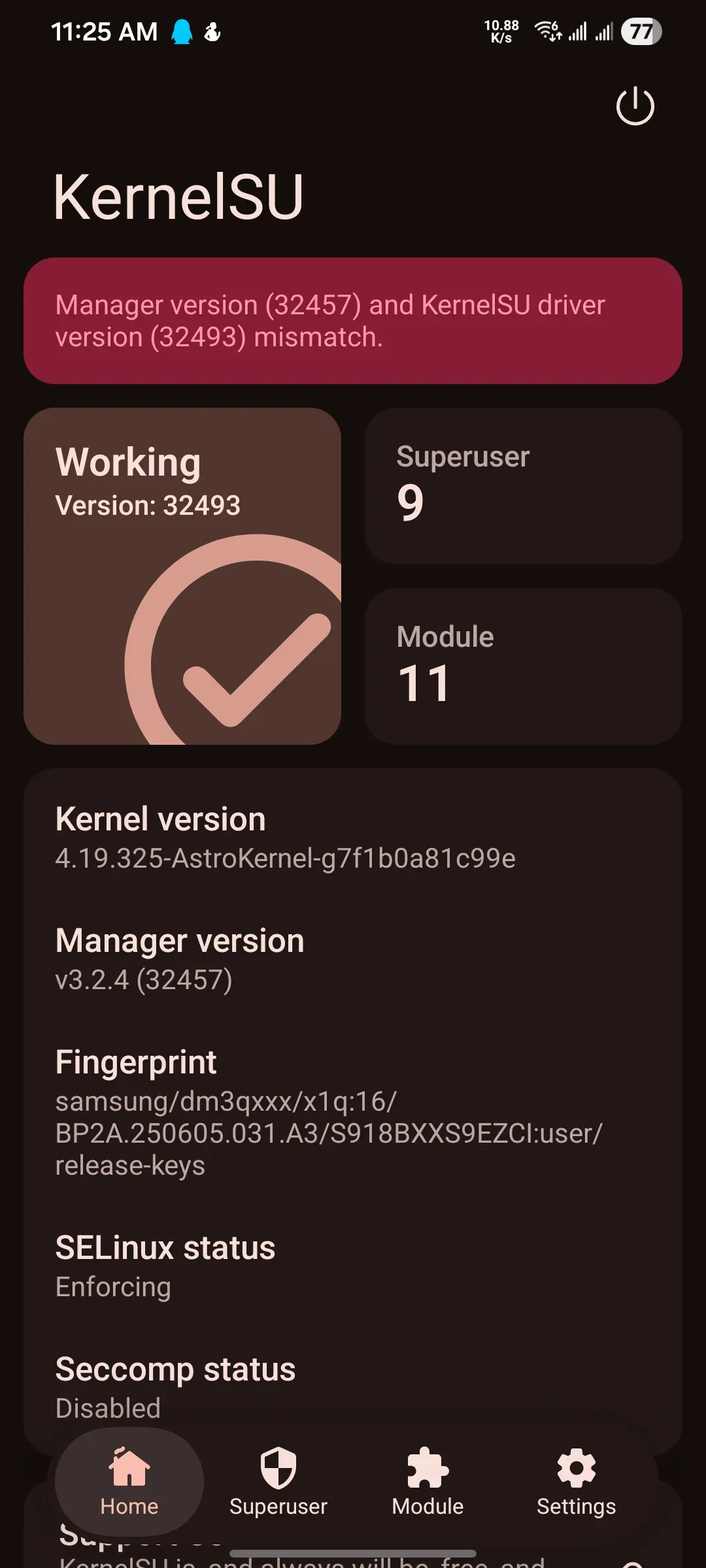
This ROM comes with ksu built in. The ROM author says it’s ksu NEXT, but after I installed the ksun manager it told me it couldn’t find the function in the kernel — no idea what that means. With the official ksu branch it says the kernel version is newer than the manager, which is very strange
Original post: XDA
Seller’s showcase (screenshots)