
INTRO
Circle to Search is a feature jointly launched by Google and Samsung. It lets users quickly search for text, images or video by circling, highlighting, scribbling on or tapping anywhere on the screen, without switching apps.
For a deeper analysis of Circle to Search, check out this article by the great @NNNNNatsu:
Circle to Search, XOXO: How Circle to Search Works and a Beginner’s Guide
MiCTS
As the title says, to enable Circle to Search on any Android (≥9) device, we need the help of an LSPosed module.
PREPARATION
- A device with root access and LSPosed installed.
LET’S GO
- Install the MiCTS module.
- Open LSPosed Framework. Usually you can get to it from the entry in the notification shade.
- Open the modules options, find MiCTS, enable it, and check the recommended scope.
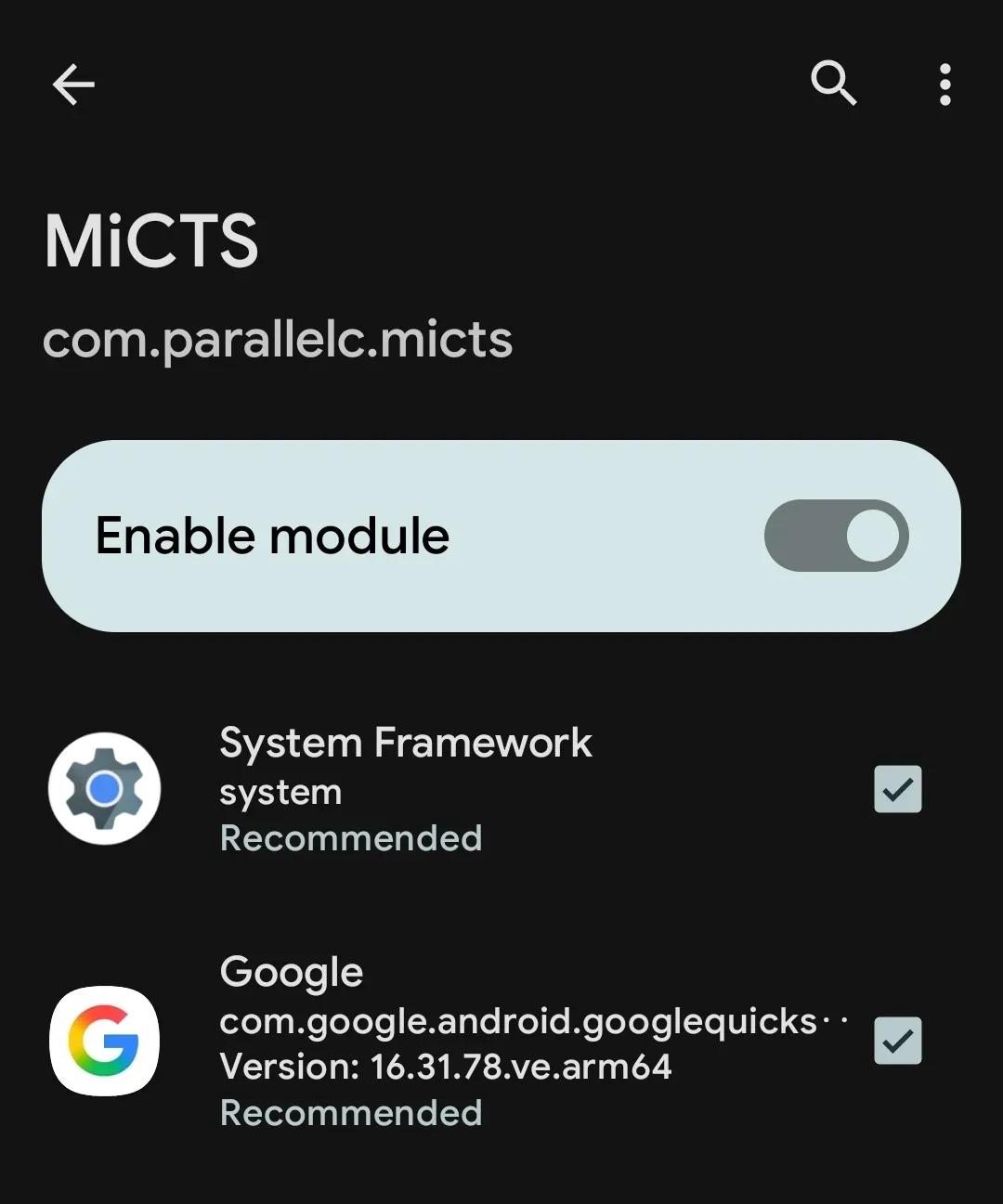
- Reboot your device.
- Change your default assistant app to Google. Normally you can find this option under
设置>应用>默认应用程序.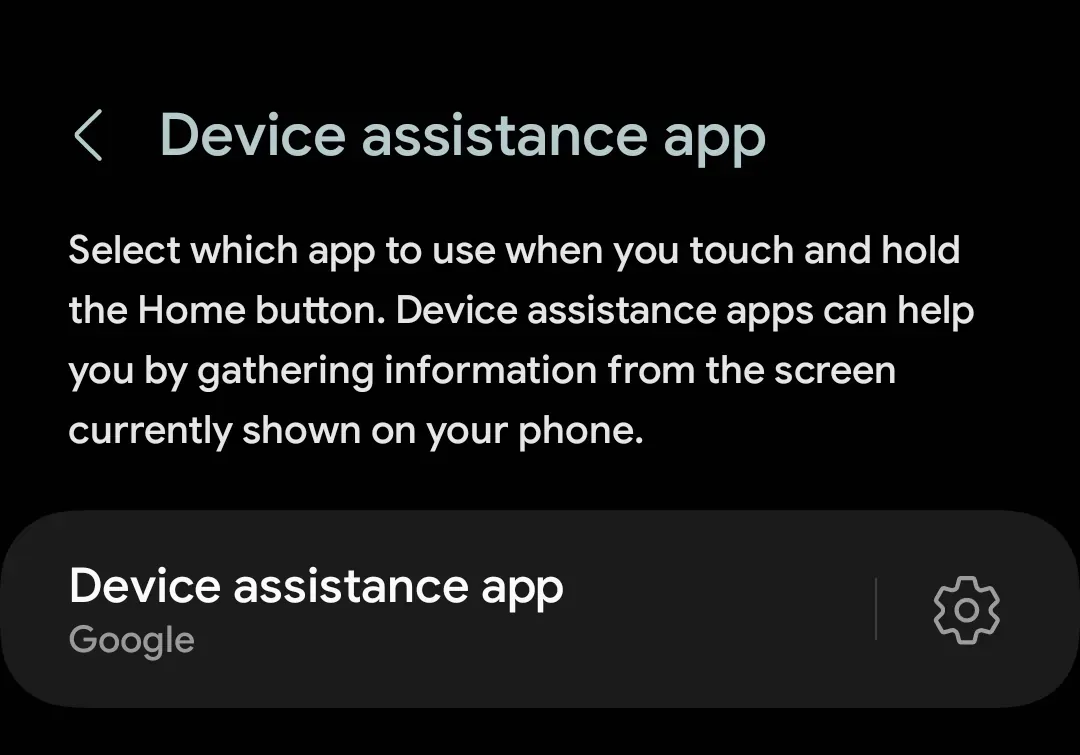
- You need to lift background restrictions on the Google app, change battery optimization to unrestricted, and allow it to auto-start.
Next, long-press the navigation bar. If 圈定即搜 triggers normally, congratulations — you’ve saved yourself half the trouble.
If it doesn’t trigger, we need some extra steps.
- Open the MiCTS page in LSPosed and tap the gear icon in the bottom-right corner to enter settings.
- A reference configuration is shown below; you may need to grant it root access.
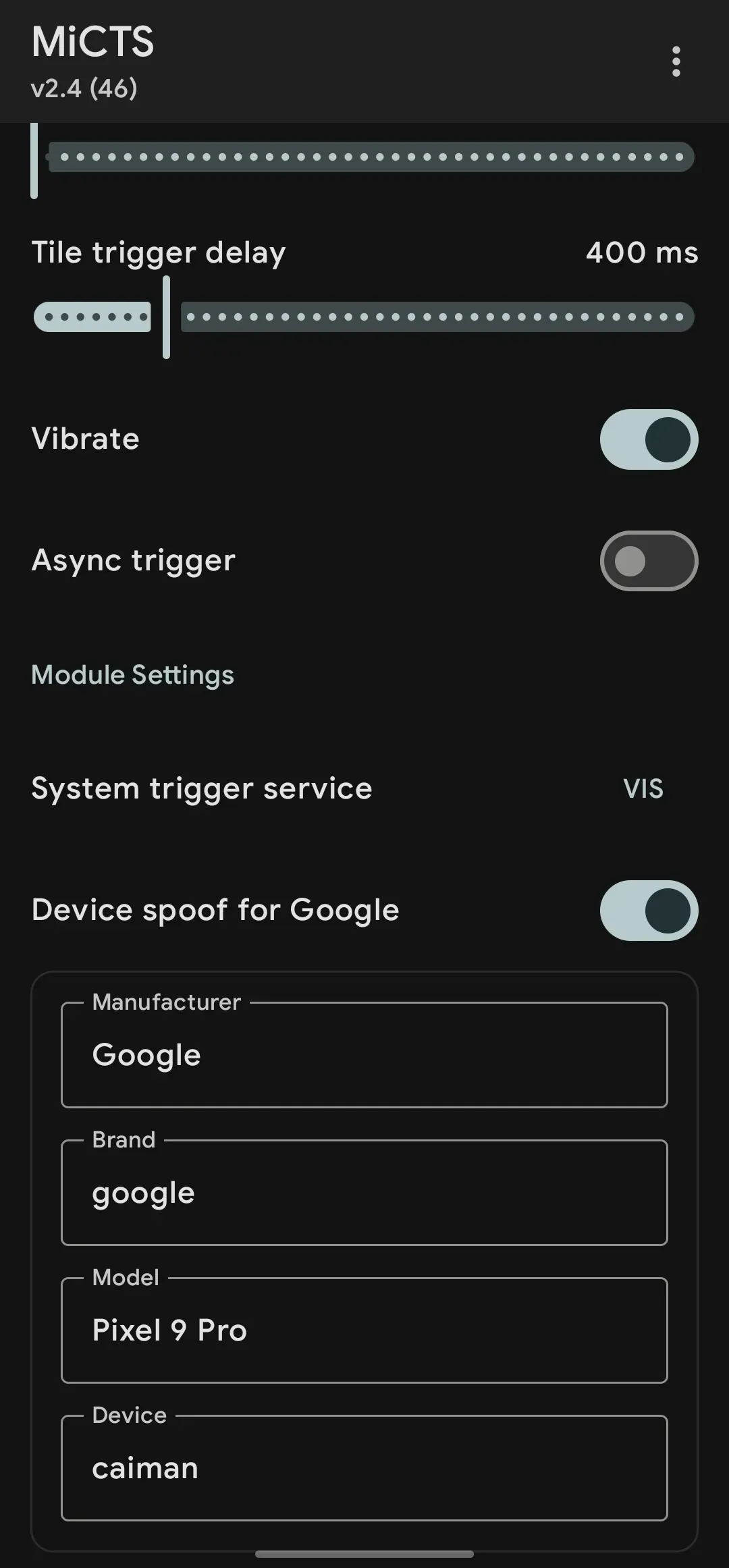
Next we set up its trigger method (if you can’t trigger it by long-pressing the navigation bar)
- Install Xposed Edge (Pro) (you’ll need to install it yourself).
- Enable Xposed Edge in LSPosed Framework and reboot its scope.
- Open Xposed Edge and configure it as shown below.
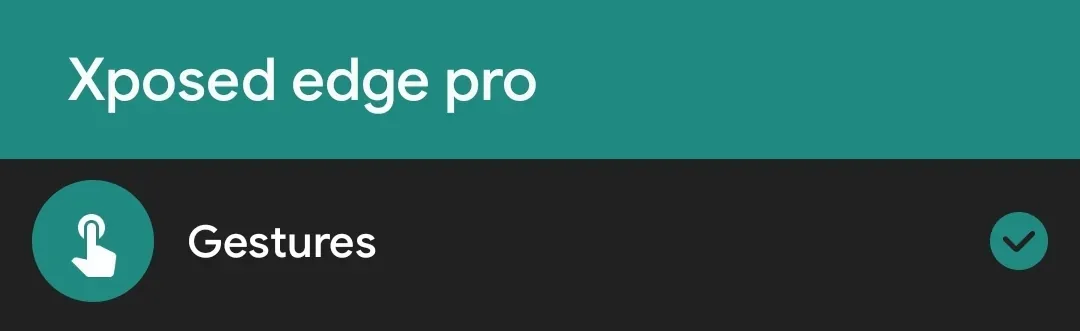
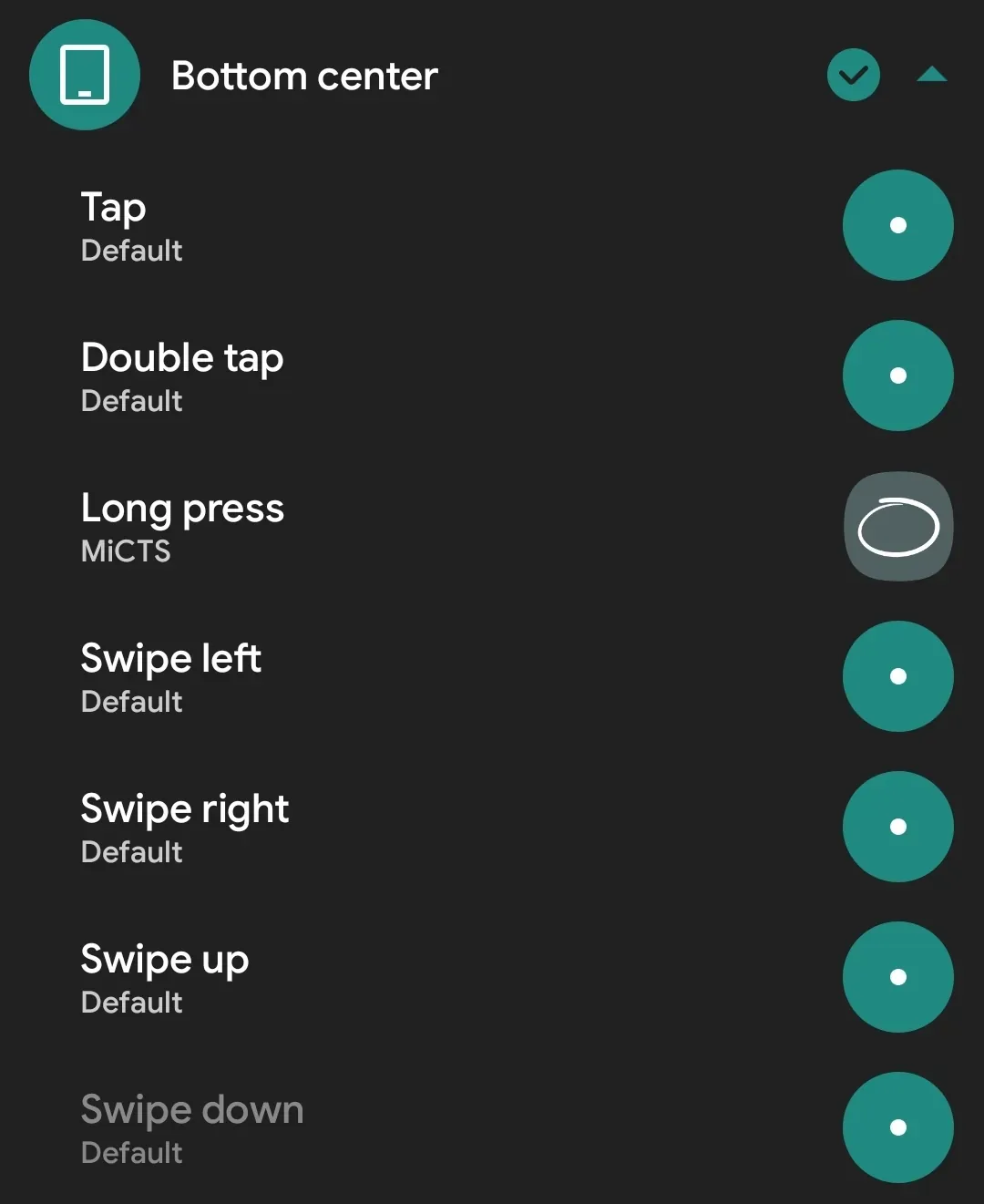
Then try long-pressing the navigation bar again — it should work as expected.
If you run into a bug, you can file an issue on the MiCTS project.
This is Chongxi, looking forward to seeing you next time.
Thanks for watching.
—Chongxi 2025-08-25