
CAUTIONCAUTION
This article is intended for the exchange and study of technical knowledge and software usage methods. The tools and configuration methods involved are only for lawful and legitimate purposes, including but not limited to cybersecurity research, encrypted data communication and access to public academic resources.
Users are fully responsible for their own actions. Please make sure you comply with the laws and regulations of your country/region when using the relevant technologies. Any illegal activity carried out using the technologies described in this article has nothing to do with the author.
Technology itself is neither good nor evil; what matters is the user’s intent and manner of use. Just as teaching chemistry does not make one responsible for drug manufacturing, and teaching programming does not make one responsible for writing malware, this article stops at the boundary of technical discussion.
0. Preface
NekoBox for Android is a general-purpose proxy tool based on the sing-box core. This article will teach you to master Nekobox and highly customise traffic-splitting rules.
0.1 Why choose Nekobox?
- Powered by the most advanced
sing-boxcore, supporting all the newest and hottest protocols, including Reality - Provides traffic routing rules fine-grained down to a single app, a single domain and a single IP
- Fully open source, eliminating any possible privacy leak Of course, it does not guarantee that the proxy server itself is safe
0.2 SagerNet and Nekobox
SagerNet is the multi-protocol proxy client of the old era; it is no longer updated and has been archived
NekoBox is its modern successor, and currently the most powerful Android proxy client
1. Nekobox Basic Configuration
1.1 Download and Installation
NOTETips
- Download the
arm64-v8aversion of the.apkfile- On first launch you need to add a VPN configuration (just tap allow)
- It is recommended to add the app to the battery optimisation whitelist so it doesn’t get cleaned up in the background by the system
1.2 Importing a Configuration
Airport User Configuration Guide
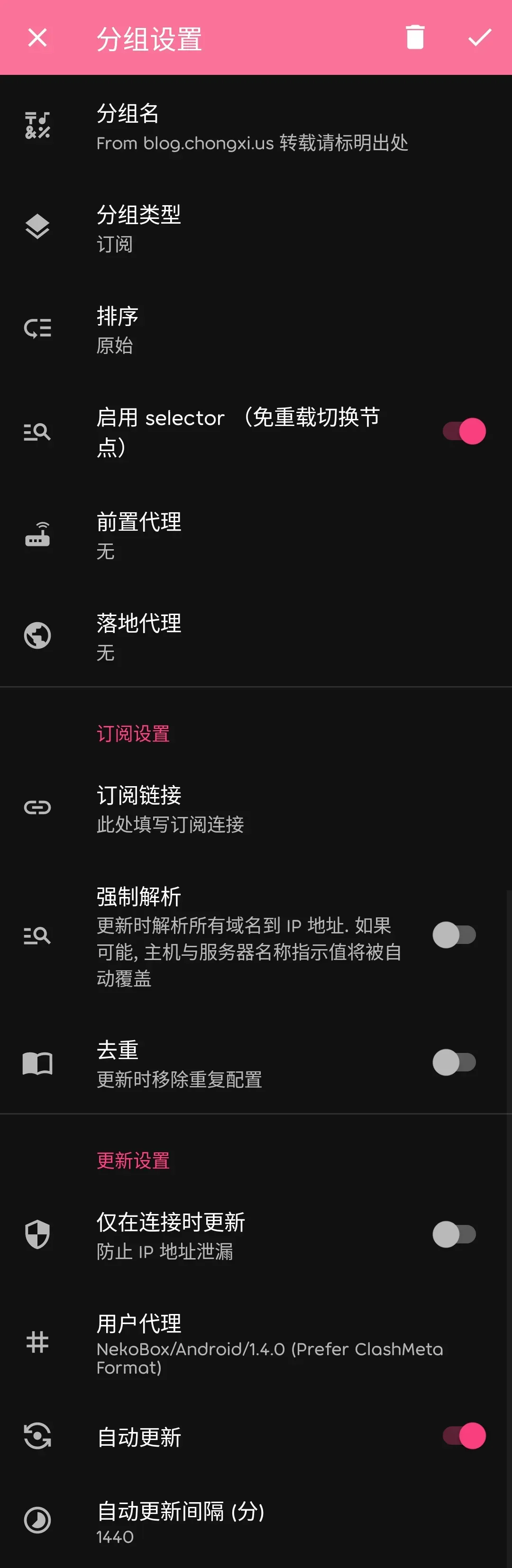
- Open the sidebar in the top-left corner
- Tap 「分组」
- Tap the top-right corner of the page to enter group settings
- Fill in
分组名however you like, change分组类型to订阅, and enter the proxy subscription URL given by your airport in订阅链接.
It’s recommended to enable
自动更新at the bottomselectordepends on your situation
- Tap the top-right corner to save
- Go back to the home page, select a node and enable it
Importing a Single Node
Tap the top-right corner of the home page and import a configuration
- Method 1: Import from clipboard Example configuration URL
trojan://[email protected]:1080/?type=tcp&security=tls#%E7%A4%BA%E4%BE%8B- Method 2: Scan a QR code
Illustration

- Method 3: Fill in the parameters manually
2. VPN vs Proxy-only: How to Choose?
In Nekobox’s settings, you’ll see a mode selector. Next, let’s briefly understand how they work.
2.1 VPN Mode
How it works: This mode enables the Android system’s VpnService API and creates a virtual network tunnel. The system automatically forwards the traffic of the vast majority of apps into this tunnel, handing it to NekoBox for processing.
TIPNote
Normally you only need to choose this mode
2.2 Proxy-only Mode
How it works: This mode does not create a VPN tunnel. It only starts a local SOCKS5 and HTTP proxy server on your phone. Apps on the phone will not automatically use this proxy. This mode is only needed in the following scenarios
- LAN sharing: Enable “允许来自局域网的连接” in 「设置」; other devices (such as a computer) can then set the proxy manually, with the address being your phone’s LAN IP and the port found in NekoBox’s proxy settings
- Manual proxy for specific apps: Some special apps (such as Termux, Firefox) support manually setting a proxy server; you can point them at the local proxy started by NekoBox.
- For developer debugging
CAUTIONCAUTION
Unless you know exactly what you’re doing, do not choose this mode; it may leave you unable to use the network normally
3. Configuration Settings
3.1 App Settings
自动连接: automatically connect to the proxy server at startup运行模式: the two modes mentioned in section 2.0 of this article; normally just chooseVPNTUN实现: TUN has three modes in total:system,gvisor,mixed. The default isgvisor
If you’re interested in how TUN works, I recommend the TUN section of that article link to article
MTU: not recommended to change at will; keep the default唤醒锁: once enabled it will stay on, but it increases power consumption自定义配置: see the official Nekobox documentation (appendix at the end of this article)
3.2 Routing Settings
WARNINGPer-app proxy
关闭: per-app proxy disabled代理: proxy only the selected apps绕过: do not proxy the selected apps
-
绕过局域网地址: when enabled, LAN addressessuch as 192.168.1.1are not proxied. Recommended. -
在核心中绕过LAN: even if TUN captures LAN traffic, it is sent directly to the destination LAN address within the sing-box core instead of going out through the proxy exit. Strongly recommended; otherwise you’ll get a whole series of bizarre LAN problems
WARNINGTraffic sniffing
流量探测means capturingSNI / TLS / HTTP Hostduring the handshake to obtain the real domain name. Because some apps connect directly by IP without a domain name, the routing rules can’t be applied that way
结果用于路由判断: the sniffed domain name is only used for routing rule decisions, but does not change the actual connection destination. Usually choose this mode用于目标地址: the sniffed domain name is not only used for routing, it is also re-resolved by DNS to change the real connection IP. Not recommended unless you know what you’re doing
解析目标地址: when what you’re visiting is a domain name, the core performs DNS resolution once more, which can resolve some possible DNS leaks.IPv6代理: recommended to disable outright, otherwise a series of outrageous problems will appear
3.3 DNS Settings
启用DNS路由: makes DNS queries themselves go through the proxy’s routing rules, instead of letting the system ask the local network/ISP/router directly. Strongly recommended启用FakeDNS: that is,Fake-IP. It takes over all DNS requests and returns a FakeIP for domain names that need to be proxied. When an app accesses this fake IP, the traffic is captured by TUN; NekoBox makes routing decisions based on the domain name corresponding to the FakeIP, then establishes a connection to the real IP through the proxy or directly. Strongly recommended. The remaining settings not mentioned here can be found in the official documentation
4. Traffic Splitting Examples
4.1 Per-app Proxy
Choose the 绕过/代理 mode according to your own situation; we recommend doing app splitting within 分应用代理
4.2 Custom Rules
Before adding rules, please understand the documentation thoroughly, otherwise you may be unable to access the internet
Nekobox’s default routing rules can simply be enabled as they are; they are already entirely sufficient for ordinary users. If you need to customise the proxy for a single domain/app/IP, you can do the following
For example, I want ChatGPT to go through a US split on its own
应用:ChatGPToutbound:<选中额外的美区节点>Or I want tgk-wcaime.wahlap.com to go through the UsgPASS proxy on its own, without affecting the main proxy
domain:tgk-wcaime.wahlap.comoutbound:<UsgPASS Proxy>As for DNS, there doesn’t seem to be an optimal solution; for ordinary users, just keep the default settings
5. Conclusion
NekoBox is a proxy tool with an extremely high ceiling. Its default settings are enough for daily needs, but its real charm lies in its excellent traffic-splitting rules and its broad protocol support.
If your device happens to be rooted, you can look into a lower-level proxy solution: Box4Magisk
Attached: Nekobox official documentation